Revit shortcut keys help architects, BIM engineers, and designers work faster by reducing repetitive clicks and improving workflow efficiency. Whether you're creating walls, aligning elements, adding dimensions, or managing visibility settings, mastering essential Revit commands can save significant time during complex projects.
When I first started using Revit, I felt overwhelmed by the endless buttons, options, and menus. If you've ever found yourself feeling the same way, you're in the right place! Today, I'm sharing 15 Revit shortcuts that save time and help me fly through my designs. Whether you're an architecture student looking to speed up your work or a professional wanting to make the most of your skills, these shortcuts are absolute game-changers.
So, grab your coffee, and let's dive into these Revit hacks that could transform the way you work.
Revit Shortcut Keys List
| Shortcut Key | Revit Command | Function |
| MV | Move | Moves selected elements |
| CO | Copy | Creates duplicates of elements |
| TR | Trim/Extend | Trims or extends elements to corners |
| AL | Align | Aligns elements precisely |
| DI | Dimension | Adds dimensions quickly |
| WA | Wall | Activates wall tool |
| VG | Visibility Graphics | Opens visibility settings |
| ZZ | Zoom | Zooms into selected area |
| RO | Rotate | Rotates selected elements |
| EH | Hide Element | Temporarily hides elements |
| HH | Hide Category | Hides entire element categories |
| CS | Create Similar | Creates similar elements |
| UN | Undo | Reverses previous action |
| TL | Thin Lines | Toggles thin line display |
| DL | Detail Line | Creates detail lines |
Using Revit shortcut keys can significantly speed up your workflow and improve productivity during architectural drafting and BIM modeling. Below is a quick reference table of the most commonly used Revit commands and keyboard shortcuts architects use daily.
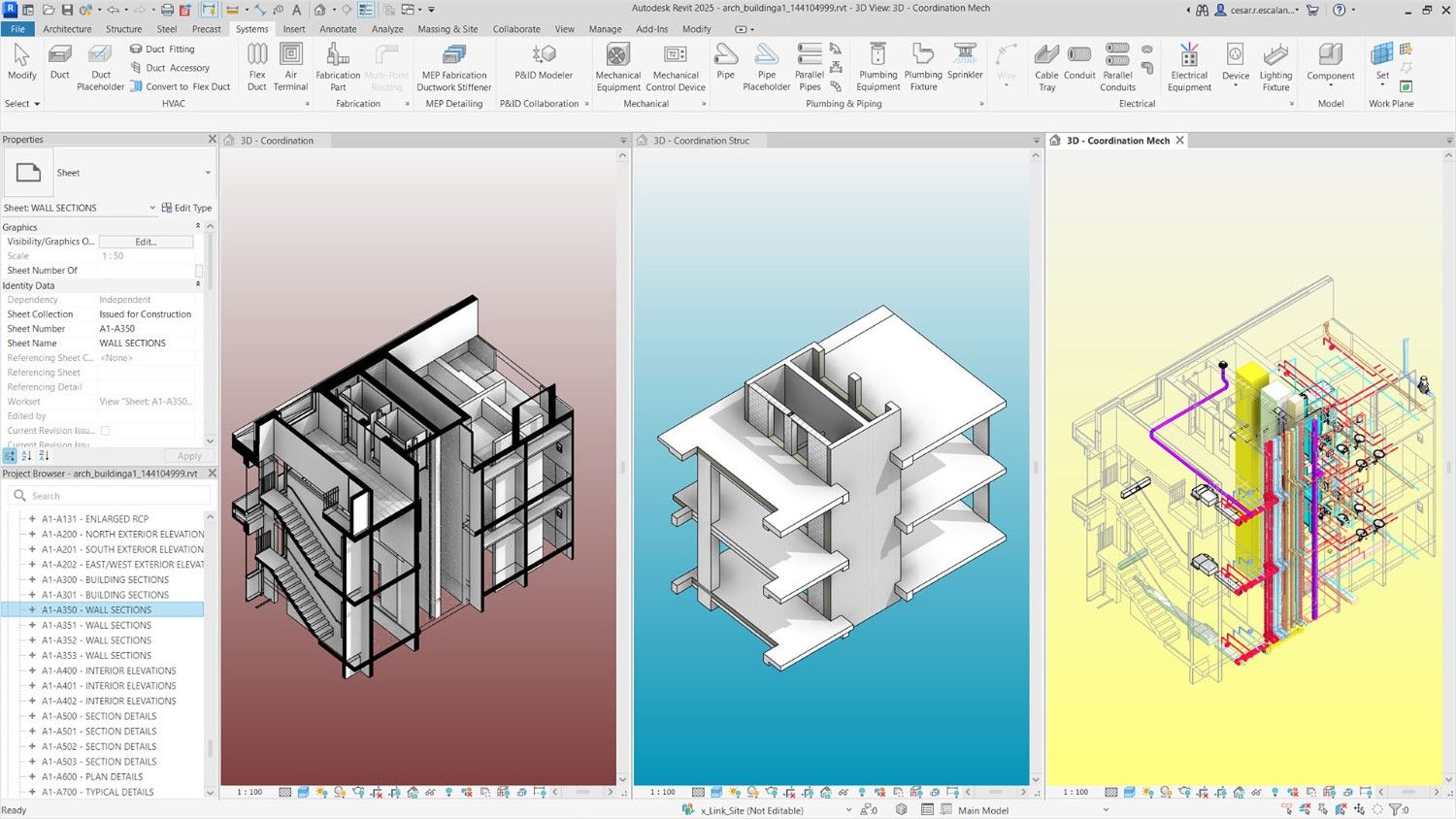
Image Credit: Autodesk.com
Why Mastering Revit Shortcuts Matters
Mastering Revit shortcut keys isn’t just about working faster—it’s about working smarter. Efficient keyboard shortcuts help architects and BIM professionals reduce repetitive actions, improve navigation speed, and streamline project workflows. If you want to further optimize your BIM process, explore our guide on streamlining Revit workflows with custom keyboard shortcuts and automation.
If you're considering your next steps in the Revit BIM certification journey, getting comfortable with these shortcuts can put you leagues ahead of others.
The Top 15 Revit Shortcuts You Should Know
1. MV (Move)
The "Move" command is probably one of the most frequently used actions in Revit. The shortcut MV allows me to move any selected elements without hassle. Forget all those extra clicks—just type MV and save those seconds!
2. CO (Copy)
Need to make a duplicate of an element? Simply type CO and click away. This shortcut works wonders when creating repetitive features, like multiple columns or repeating design elements across a project.
3. TR (Trim/Extend to Corner)
The TR command is one of the most useful Revit shortcut keys for architects because it quickly trims or extends walls and elements without opening additional tools.
4. AL (Align)
Getting things to line up precisely in Revit can be tough without the right tools. Thankfully, the AL shortcut does the job in seconds. Just hit AL, select the reference line, and boom! Everything snaps into place.
Image Credit: Autodesk.com
5. ZZ (Zoom)
Sometimes I just need to get a closer look at a certain part of my project. With ZZ, I can zoom in without breaking my workflow. Zooming in and out quickly helps me make fine adjustments.
6. CS (Create Similar)
Found an element you need to replicate? CS lets you create a similar object with just a keystroke. It's such a lifesaver when I need consistency in my project.
7. DL (Detail Line)
Detailing is crucial for clarity. Instead of clicking through menus to find the line tool, I type DL and draw precise details on the fly.
8. VG (Visibility/Graphics Override)
Adjusting visibility settings is essential, especially when working on large models. The VG shortcut lets me modify the graphics display settings in a snap.
9. DI (Dimension)
Measurements are key to architectural accuracy. Whenever I need to add dimensions, I rely on the DI shortcut. It helps keep my projects accurate and saves a lot of time compared to manually finding the dimension tool.
10. TL (Thin Lines)
I use TL whenever I need to switch to a thin line view. This makes elements on the screen look crisper and makes it easier for me to differentiate between various lines when I'm in the middle of editing.
11. WA (Wall)
Walls are obviously a major element in any architectural design. With WA, I can quickly draw walls without searching through the ribbon. It keeps my design flow uninterrupted.
12. EH (Hide Element)
Sometimes elements can clutter my view, making it difficult to focus. Using EH, I can hide any distracting element temporarily, allowing me to work without unnecessary visual clutter.
13. UN (Undo)
We all make mistakes, and that’s totally okay. Whenever I need to backtrack a bit, UN (Undo) is the way to go—no hunting for that tiny undo button in the corner.
14. RO (Rotate)
When I need to rotate an element, typing RO lets me adjust angles quickly and accurately. I love how intuitive it feels compared to clicking around the toolbar.
15. HH (Hide Category)
Similar to EH, HH hides entire categories. For example, if I need to work on the interior, but those pesky exterior walls are blocking my view, I hit HH to hide them. It keeps things organized and clutter-free.
How to Use the Reference Line Shortcut in Revit
A lot of Revit users search for the reference line shortcut specifically because it is not as obvious as WA (Wall) or DI (Dimension).
RL is the shortcut for Reference Line. Type RL while in a plan or elevation view, then click to place the line. Reference lines are useful when you want to define a work plane or create constraints for families.
RP activates the Reference Plane tool — different from a reference line. Reference planes are infinite in length and are used for snapping and hosting elements. If you are working inside the Family Editor, both RL and RP are tools you will use regularly.
Do Revit Shortcuts Work the Same in Every Version
Yes. The core keyboard shortcuts stay the same across Revit 2022, 2023, 2024, 2025, and 2026. MV, CO, AL, WA, DI — all work identically across versions.
The only time shortcuts change is when Autodesk adds a new tool, or if your firm has loaded a custom KBS file. If shortcuts suddenly stop working after an update, check whether a shared KBS file from an older version is overriding your current defaults.
->Learn the fundamentals hands-on in our BIM & Revit masterclass
Integrating These Shortcuts into Your Workflow
It's all about muscle memory. When I first started, I had a post-it next to my desk listing all of these Revit shortcuts. After a few projects, they became second nature. I recommend focusing on learning a couple of these shortcuts at a time—maybe one or two per project—until they feel completely natural.
Once you're comfortable with the basics, you can even customize shortcuts to suit your unique workflow. This makes Revit even more powerful and tailored to your specific needs.
For those of you interested in becoming a Revit pro, consider checking out our in-depth Revit advanced course to master even more efficient workflows and project management techniques. It’s an excellent follow-up after you’ve aced the basics with the masterclass.
Once you become comfortable using essential Revit shortcut keys, you can further improve your BIM workflow with advanced productivity techniques and automation strategies. Explore these top Revit hacks used by architects and BIM professionals to save time and improve project efficiency.
Once you become comfortable using essential Revit shortcut keys, the next step is learning how to apply them efficiently in real BIM projects. If you want to improve your modeling speed, project workflows, and practical Revit skills, explore our Revit BIM Masterclass designed for architecture students and professionals looking to build industry-ready expertise.
Conclusion
There you have it—15 Revit hacks that help me save precious time and maintain a smooth workflow. Integrating these shortcuts isn’t just about impressing your peers—it’s about becoming more efficient, reducing frustration, and, ultimately, enjoying the creative process. I find that using these shortcuts makes me appreciate Revit even more, transforming what used to feel like a complicated program into a well-oiled machine that just works for me.
So, take some time to practice, and don't forget to be patient with yourself—everyone starts somewhere.
Also, if you’re eager to dive deeper into Revit, you might want to check out our Advanced Revit Course. It's designed to guide you through even more complex tasks and help you build a solid foundation for certification and beyond.
Visit our website Kaarwan or more course details!
Why Revit Shortcut Keys Improve BIM Productivity
Learning Revit keyboard shortcuts helps architects and BIM professionals complete repetitive tasks faster, reduce workflow interruptions, and improve modeling accuracy. Instead of navigating through multiple toolbar options, shortcut keys allow users to access commonly used Revit commands instantly.
For architecture students and professionals managing large BIM projects, mastering shortcut keys can improve drafting speed, coordination efficiency, and overall project delivery timelines.
Frequently Asked Questions About Revit Shortcut Keys
1. How can I customize Revit shortcuts?
Head to the View Tab > User Interface > Keyboard Shortcuts. Here, you can add, edit, or remove shortcuts to fit your workflow better.
2. How do I remember all these Revit shortcuts?
Practice makes perfect! I recommend writing them down and focusing on two or three per project. Eventually, they’ll stick.
3. Are these shortcuts helpful for beginners?
Absolutely! These shortcuts are essential for building foundational skills. They help beginners feel comfortable with Revit and reduce the learning curve.
4. What's the difference between 'EH' and 'HH' in Revit?
EH hides a specific element, while HH hides an entire category of elements. They are both helpful for decluttering your workspace.
5. Can I use these Revit shortcuts in any version of the software?
Most of these shortcuts are available in all versions of Revit, but it’s always a good idea to check the specific version you are using. Some shortcuts may differ or require updates in newer releases.
6. What are the most commonly used Revit shortcut keys?
The most commonly used Revit shortcut keys include MV for Move, CO for Copy, TR for Trim/Extend, DI for Dimension, AL for Align, and VG for Visibility Graphics. These commands help architects and BIM professionals work faster and improve workflow efficiency.
7. Are Revit shortcuts the same in all versions?
Most Revit shortcut keys remain consistent across versions, although some commands and keyboard mappings may change slightly in newer releases like Revit 2025 and Revit 2026.
8. Why are Revit shortcut keys important for architects?
Revit shortcut keys improve drafting speed, reduce repetitive actions, and help architects navigate BIM workflows more efficiently during modeling, documentation, and project coordination
9. What is the EH command in Revit?
EH stands for Hide Element. When you select an element and press EH, it hides that specific element in the current view only — it does not delete it. To bring it back, go to View > Reveal Hidden Elements or use the shortcut RH.
10. What is the HH command in Revit?
HH stands for Hide Category. Unlike EH which hides a single element, HH hides every element of the same category in the current view. Select a door and press HH, and every door in that view disappears. It is the fastest way to declutter a busy view when you need to focus on one part of the model.
11. What is the shortcut for Reference Line in Revit?
The shortcut for Reference Line is RL. Type RL in any view and click to place it. For Reference Plane, the shortcut is RP. Both are used frequently inside the Revit Family Editor to set up work planes and constraints.
12. Do Revit shortcuts work the same in Revit 2025 and 2026?
Yes. Core shortcuts remain consistent across versions. They only change if Autodesk introduces a new tool or if a custom keyboard shortcut file (KBS) has been imported that overrides the defaults.