So you've been working in Revit for a while. You know your way around families, schedules, and sheets. And then someone on your team casually mentions Dynamo , and suddenly there's this whole other world you didn't know existed.
That's honestly how most people find it. Not through a formal course or some structured onboarding. Just a colleague saying, "why are you doing that manually? Just write a Dynamo script."
And if that's where you are right now , a little curious, a little overwhelmed, maybe not sure if this is really for you , this guide is exactly what you need. We'll break down what Dynamo for Revit actually is, what you can realistically do with it, how it compares to other tools, and how to actually get started without losing your mind.
Also Read: What is BIM? A Beginner's Guide for Architecture Students
What Is Dynamo in Revit?
In essence, Dynamo is a visual programming interface embedded in the software called Autodesk Revit. The program comes bundled with Revit 2017 and subsequent editions of the program, hence if you own Revit, you can find Dynamo in the Manage panel.
This is where things get really interesting. While Revit is great, it does have some limitations. There are things you simply can't do through the standard interface , at least not without clicking the same buttons five hundred times or manually updating parameters across hundreds of elements one by one. Dynamo removes that ceiling. It gives you access to the Revit API (the programming backbone of the software) through a drag-and-drop node interface. No traditional coding required.
Think of it this way. Instead of clicking through menus to rename every room in a 200-room hospital project, you build a small Dynamo script once. Then you run it and it's done in seconds. That's Dynamo revit in the most practical sense.
The workspace is called a "graph." You drop nodes onto a canvas, connect them with wires, and data flows left to right , inputs on the left, outputs on the right. Each node does one specific job: get all doors in a model, read a parameter value, write a new value back. String them together and you've got automation.
How Dynamo Differs from Macros and Plugins
There are actually a few different ways to automate things in Revit , Macros, Add-ins, and Dynamo being the main three. They're not the same thing.
| Tool | Coding Required | Learning Curve | Best For |
| Dynamo | No (optional Python) | Low to medium | Custom workflows, BIM data, parametric logic |
| Macros | Yes (C# / VB.NET) | High | Quick one-off project automations |
| Plugins / Add-ins | Yes (C# or Python) | Very high | Complex, production-grade enterprise tools |
Dynamo sits in the sweet spot. It's accessible enough for architects and engineers with no programming background, but powerful enough that firms use it at scale on real projects. Industry studies show that 40–50% of BIM effort involves repetitive, rule-based tasks suitable for automation. Dynamo is the most practical entry point for addressing that.
Dynamo vs Grasshopper , Which Should You Learn First?
This one comes up constantly, and it's genuinely worth addressing because the answer isn't as simple as "both are the same, pick one."
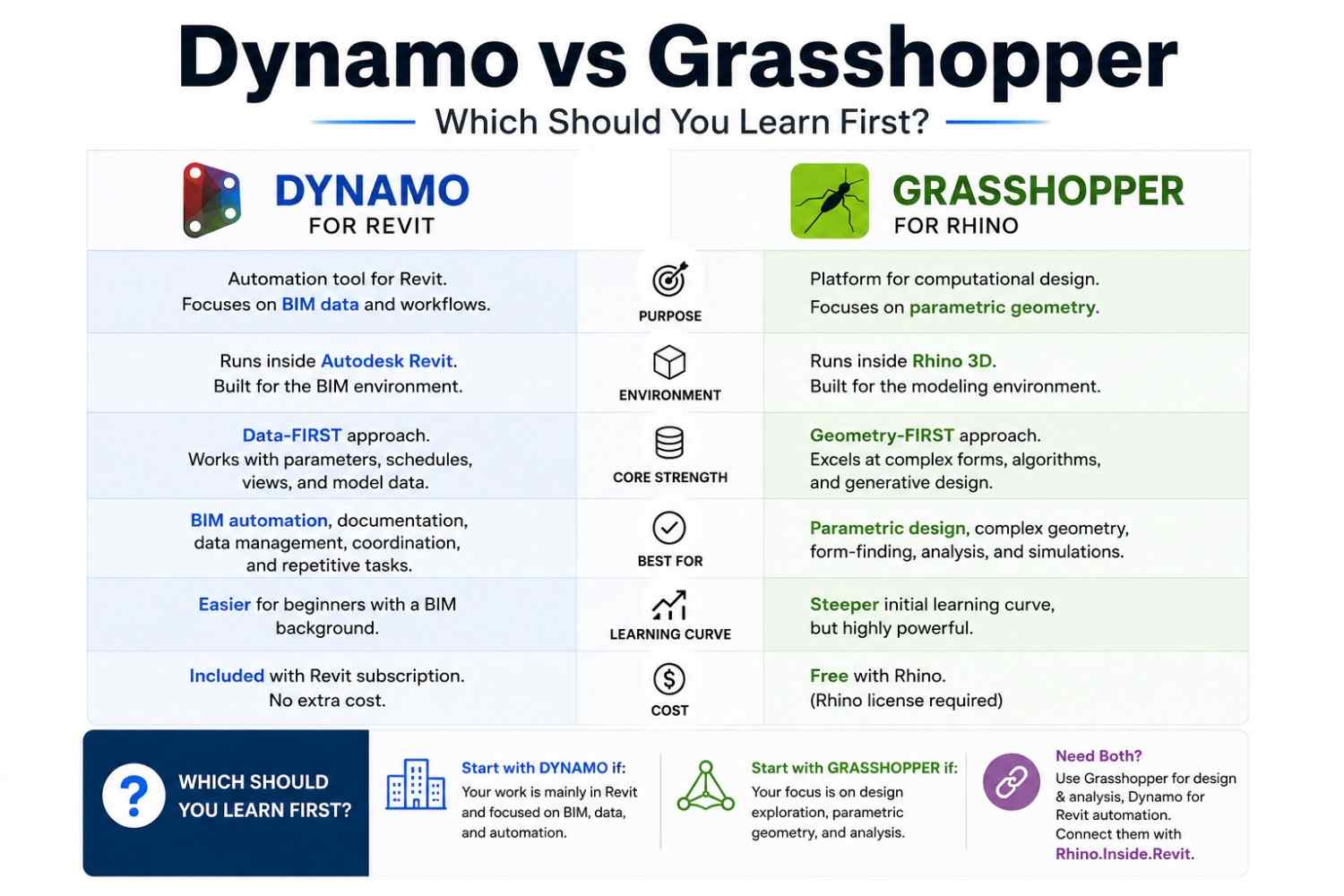
They're actually quite different tools built for different environments. Grasshopper is built as a platform , an open, extensible environment for computational design that lives inside Rhino. Dynamo is built as an automation tool for Revit, with its primary purpose being to automate repetitive tasks within the BIM environment.
Data-First vs Geometry-First: The Core Difference
Here's a framing that really sticks: Dynamo lives in Revit's data-first world. Grasshopper lives in Rhino's geometry-first world.
Dynamo's strength is manipulating BIM data , reading parameters, writing parameter values, managing schedules, organising information across an entire model. It can do geometry, but that's not its main territory.
Grasshopper, on the other hand, is built for free-form parametric geometry. Complex facades, structural form-finding, environmental analysis through plugins like Ladybug , that's Grasshopper's home turf.
Dynamo is the default choice for firms working primarily in Revit since it is free with the subscription and excels at BIM automation. The trade-off is geometric flexibility: Dynamo's native geometry kernel is less robust than Rhino's NURBS engine, so it is not ideal for sculpting complex curved surfaces.
When You Need Both
The most advanced architecture firms actually use both tools together, with Rhino.Inside.Revit acting as the bridge. If you need both: use Grasshopper for design and analysis, Dynamo for Revit automation, and Rhino.Inside.Revit to connect them.
If your work is primarily BIM coordination, documentation, and data management , start with Dynamo. If your work leans toward parametric architecture, computational design, and complex geometry , start with Grasshopper. If you eventually want both, that's absolutely achievable, but don't try to learn them simultaneously at the beginning.
Also Read: Rhino and Grasshopper: Complete Beginner's Guide
Take your first step into BIM automation with Kaarwan's Professional Revit & BIM Certification Program. Learn Dynamo, computational BIM, and industry-standard Revit workflows through hands-on projects guided by experienced industry mentors.
What Can You Actually Automate with Dynamo?
This is the question that matters most. Because Dynamo is only worth learning if it solves real problems in your day-to-day work. So let's get concrete.
Sheet and View Automation
Creating sheets manually in Revit , one by one, placing views, filling in title block parameters , is one of those tasks that can genuinely consume half a day on a large project. Dynamo can automate sheet creation in bulk and place views automatically using defined rules.
A typical script might pull a list of sheet names and numbers from an Excel file, create all those sheets inside Revit in seconds, and place the relevant views on each one automatically. What used to take three hours is done before your coffee gets cold.
Room Tagging and Schedules
Room data is another place where Dynamo shines. A Dynamo script reads existing room data, applies logic, and writes accurate values back in seconds , covering tasks like room numbers, area calculations, and fire compartment tags across 200+ rooms.
You can also extract schedule data and export it directly to Excel. Adjust values in the spreadsheet, then push them back into Revit with another script. Bidirectional data exchange between Revit and Excel is one of the most genuinely useful things Dynamo does in practice.
Family and Parameter Automation
Say you've got 400 door families and you need to update a specific shared parameter across all of them. Manually, that's an afternoon of clicking. With Dynamo's Element.SetParameterValueByName node, it's a five-minute script.
Dynamo works with the Revit API and gives full control over Revit's database, elements, and parameters. If a function is not available as a node, you can call it directly using Python within the graph.
Real example: An infrastructure firm working on a large hospital project used Dynamo to automatically number and tag over 300 rooms based on floor and zone logic. The script that took a BIM coordinator 45 minutes to build saved the team an estimated 16 hours of manual work. The script was then shared across the team via Dynamo Player , more on that below.
Is Dynamo Hard to Learn?
Honestly? The entry point is more approachable than people expect. The anxiety around it usually comes from the word "programming" , but the visual node interface means you're not writing code in the traditional sense. You're connecting logic blocks.
Here's a comparison that helps calibrate expectations:
| Dynamo Skill Level | What You Can Do | Time to Get There |
| Beginner | Read parameters, basic lists, Watch nodes, simple scripts | 2–4 weeks of consistent practice |
| Intermediate | Sheet automation, Excel integration, filtering logic | 2–3 months |
| Advanced | Python nodes, custom packages, complex data trees | 6+ months |
The honest challenge isn't the nodes themselves. It's lists. Almost everything in Dynamo is a list , elements come back as lists, parameter values are in lists, filtered results are lists. Once you genuinely understand how Dynamo handles lists, a huge percentage of errors become immediately readable and fixable.
The other thing that trips people up is jumping to complex scripts before understanding the fundamentals. Start small. Literally one script that selects all rooms and displays their names in a Watch node. That teaches you element collection, parameter extraction, and data display , the foundation of almost everything else.
How to Start Learning Dynamo for Revit (Step-by-Step)
Prerequisites
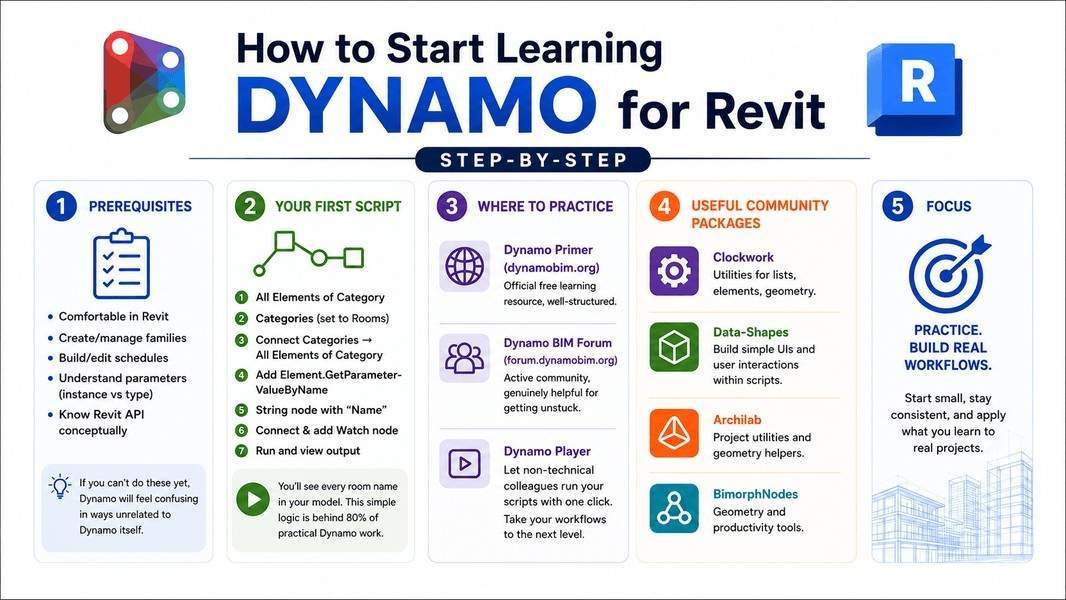
Before you open Dynamo, make sure you're actually comfortable in Revit. You should be able to:
- Create and manage families
- Build and edit schedules
- Understand parameters (instance vs type)
- Navigate the Revit API conceptually (not write it , just understand that it exists)
If you can't do those things yet, Dynamo will feel confusing in ways that have nothing to do with Dynamo itself.
Your First Script
Open Revit, go to the Manage tab, and click Dynamo. A separate window opens , this is your graph canvas.
Here's a genuinely beginner-friendly first script to build:
- Search the library for All Elements of Category
- Add a Categories node , set it to Rooms
- Connect Categories → All Elements of Category
- Add Element.GetParameterValueByName
- Connect a String node with the text "Name" into the parameterName port
- Connect your room elements into the element port
- Add a Watch node to see the output
Run it. You'll see a list of every room name in your model. That's your first working Dynamo script. It's simple, but the logic it teaches you , get elements, extract a parameter, view the output , is the same logic behind 80% of practical Dynamo work.
Where to Practice
- Dynamo Primer (dynamobim.org) , the official free learning resource, well-structured
- Dynamo BIM Forum (forum.dynamobim.org) , active community, genuinely helpful for getting unstuck
- Dynamo Player , once you've built a script, Player lets non-technical colleagues run it with one click. This is how Dynamo moves from personal tool to team workflow.
Community packages dramatically extend what you can do with out-of-the-box Dynamo. The most useful ones to know about:
- Clockwork , utilities for lists, elements, geometry
- Data-Shapes , build simple UIs and user interactions within scripts
- Archilab , project utilities and geometry helpers
- BimorphNodes , geometry and productivity tools
Dynamo in 2026: What's New
Dynamo has been moving fast. Revit 2026 ships with Dynamo 3.4.1 through to Dynamo 3.6, with new features including a Curve Mapper node, enhanced grouping, faster performance, and a new Node Autocomplete experience.
The practical updates worth knowing about:
TuneUp Integration: Dynamo 3.4.1 features deeper integration of TuneUp, an extension that allows the execution time of each node in scripts to be visualised. This is crucial for identifying bottlenecks in complex processes and facilitates debugging and optimisation of Dynamo graphs.
Python Engine Upgrade: The leap to PythonNet3 as the underlying Python engine enables compatibility with advanced libraries such as NumPy and pandas, extending the possibilities for data analysis and mathematical processing within Dynamo. This opens up significantly more sophisticated automation for teams that are ready to move beyond purely visual scripting.
Package Compatibility Warnings: Dynamo 3.4.1 incorporates a warning system that displays detailed package compatibility information, reducing errors resulting from the use of obsolete or incompatible versions.
Node Autocomplete: Dynamo 3.6 introduces an autocomplete experience when searching for nodes , similar to what you'd expect in a code editor. It dramatically speeds up graph building once you know what you're looking for.
For BIM teams working on parameterised facade generation or structural analysis workflows, the performance improvements are genuinely meaningful. The debugging tools in particular were long overdue.
Ready to move beyond Revit basics? Kaarwan's Professional Revit & BIM Certification Program covers Dynamo fundamentals as part of a complete BIM workflow, helping architecture and engineering professionals build practical, job-ready skills.
FAQs
Q1: What is Dynamo used for in Revit?
Dynamo is used to automate repetitive BIM tasks, manage model parameters at scale, create parametric design logic, and extract or push data between Revit and external tools like Excel. It gives architects and engineers access to Revit's API through a visual node interface , no traditional coding background needed.
Q2: Do I need to know coding to use Dynamo?
No. The visual programming interface , where you connect nodes instead of writing code , means complete beginners can build useful scripts. That said, learning basic Python is worth the investment if you want to eventually go deeper, since Python nodes unlock things the standard node library can't do.
Q3: Is Dynamo the same as Grasshopper?
They're similar in concept , both are node-based visual programming tools , but quite different in practice. Dynamo runs inside Revit and is primarily built for BIM data automation. Grasshopper runs inside Rhino and is built for parametric geometry and computational design. The right choice depends on your workflow and the software your firm uses.
Q4: Can beginners learn Dynamo without a course?
Yes, with the right resources , the official Dynamo Primer and the Dynamo BIM Forum are excellent starting points. That said, a structured course accelerates the process significantly, especially because the fundamentals around lists and data structures take longer to figure out on your own.
Q5: What's the difference between Dynamo and Revit macros?
Both automate Revit tasks, but they work very differently. Revit macros require you to write C# or VB.NET code, making them suitable only for people with programming experience. Dynamo uses a visual drag-and-drop interface that's accessible to architects and engineers without coding backgrounds. Dynamo is also much easier to share across teams through Dynamo Player.