If you've been creating Revit sheets one by one, manually adjusting views, and wrestling with title blocks you're spending hours on work that should take minutes. This guide goes beyond the basics. You'll learn the exact sheet management techniques BIM professionals use on large-scale projects: setting up view templates, automating sheet creation with Dynamo, organising sheets with the Sheet Index and Browser Organisation, and using the new Sheet Collections feature in Revit 2025.
Whether you're an architect, technician, or BIM coordinator, these techniques will cut your documentation time and improve consistency across every project.
How to Create a Sheet in Revit: 3 Methods (Step-by-Step)
Before diving into advanced techniques, here's a quick refresher on all three ways to create a sheet in Revit. Even experienced users miss the fastest method.
Method 1 : Project Browser (most common)
1. In the Project Browser, right-click Sheets (all)
2. Select New Sheet
3. Choose your title block from the dialog and click OK
4. Rename the sheet in the Properties panel
Method 2 : View Tab (fastest for keyboard users)
1. Click the View tab in the Ribbon
2. Under Sheet Composition, click Sheet
3. Select a title block and confirm
Pro tip: Set a keyboard shortcut (NS works well) — go to View > User Interface > Keyboard Shortcuts. One keystroke creates a new sheet from anywhere in the project.
Method 3 : Sheet List Schedule (best for large projects)
1. Go to View tab > Schedules > Sheet List
2. Create a Sheet List schedule
3. Use Insert Data Row to add as many rows as you need — each row becomes a sheet
4. Click New Sheet and select your title block to convert all rows at once
This method lets you set up 50+ sheets in under two minutes. Name them all inside the schedule before converting.
Want to go further? Get certified in Revit & BIM. Our Professional Revit & BIM Certification Course covers sheet creation, documentation workflows, Dynamo automation, and everything you need to lead BIM projects confidently.
Learning the Fundamentals of Sheet Creation
Setting Up Views
The process of setting up views entails defining how diverse project aspects will be showcased on sheets. This incorporates floor plans, elevations, sections, and detail views. Meticulously setting up views ensures that all necessary information is conveyed transparently.
Arranging Views on Sheets
Arranging views on sheets involves organizing them in a logical and visually appealing manner. This encompasses adjusting view scales, aligning views, and guaranteeing adequate spacing for annotations. A well-organized sheet facilitates a more effortless interpretation of project details.
Including Necessary Information
Ensuring all requisite information is incorporated involves adding annotations, dimensions, and notes. This step is crucial for furnishing comprehensive and accurate documentation, which is imperative for construction and project approval processes.
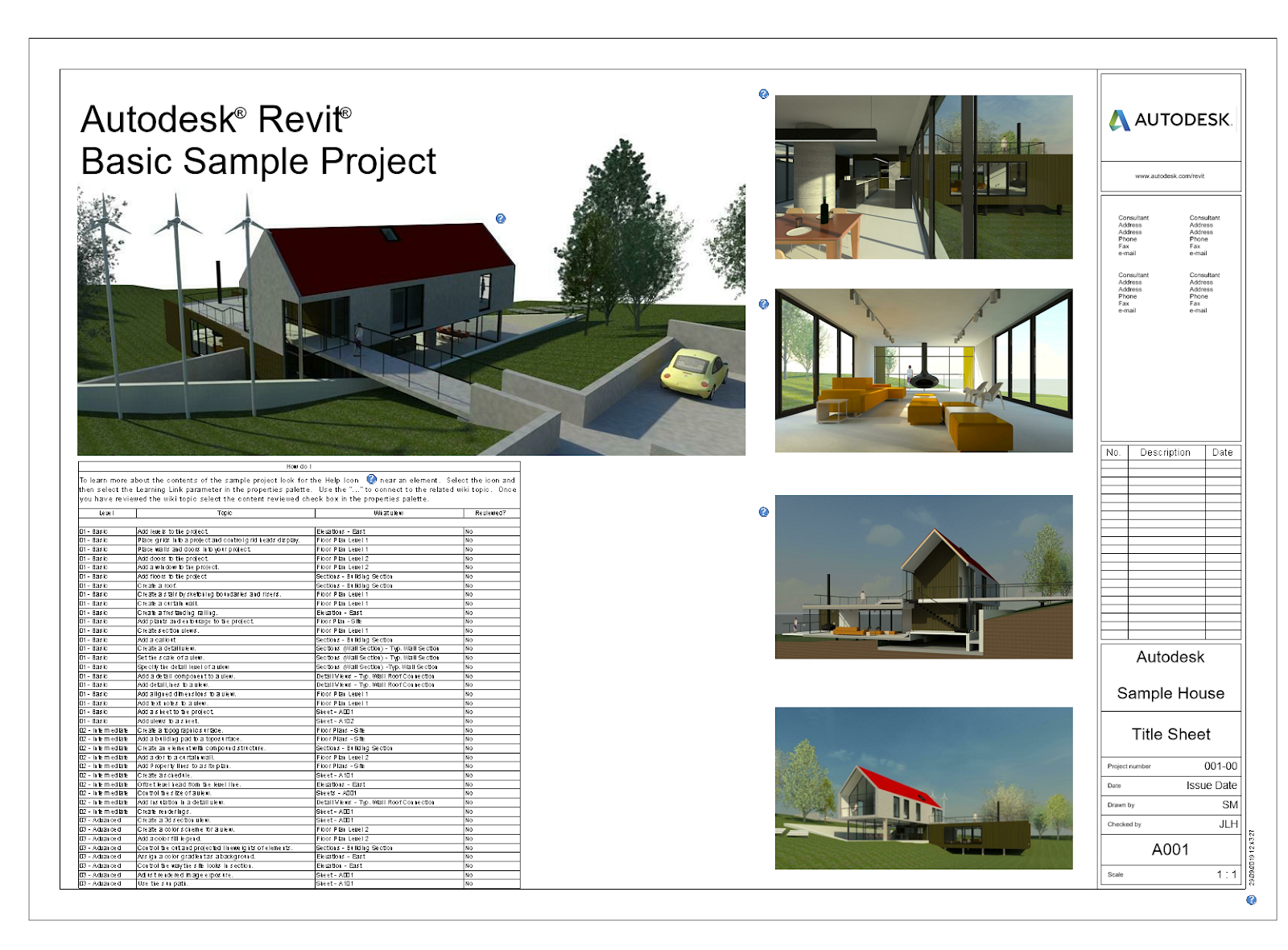
Image source - www.modelical.com
Advanced Techniques for Streamlined Sheet Creation
Leveraging View Templates
View templates in Revit assist in standardizing the appearance and configurations of views. By implementing view templates, professionals can ensure consistency across all sheets, minimizing the time expended on manual adjustments and augmenting overall efficiency.
Capitalizing on Annotation Tools
Advanced annotation tools, such as keynotes and tags, streamline the process of incorporating detailed information onto sheets. These tools aid in maintaining accuracy and clarity, guaranteeing that all essential details are effectively communicated.
Implementing Automation Features
Automation features, such as Dynamo scripts, can automate repetitive tasks within sheet creation. These features empower professionals to save time and minimize the potential for errors, allowing them to concentrate on more critical project aspects.
Join our free Revit BIM masterclass to learn sheet creation
Revit's Tools for Revit Sheet Management: Browser Organisation, Sheet Index & Naming Conventions
Good sheet management in Revit separates a clean, navigable project from a chaotic one. Three tools every BIM professional should be using consistently:
Browser Organisation:
Go to View > Browser Organisation > Sheets and create a custom grouping using a shared parameter (e.g. "Sheet Discipline"). This sorts Architectural, Structural, and MEP sheets into their own groups in the Project Browser. On a 100+ sheet project, this is not optional.
Sheet Index:
Schedule Every project should have a Sheet Index on the cover sheet. Create it via View > Schedules > Sheet List. Include: Sheet Number, Sheet Name, Revision Date, Drawn By. If you're using Sheet Collections, add a filter so each set shows only its relevant sheets.
Naming Conventions :
Use a consistent pattern: [Discipline Code]-[Sheet Number]-[Short Description]. Example: A-101-Ground Floor Plan. This keeps PDF exports organised without manual renaming and works correctly with automated sheet numbering tools.
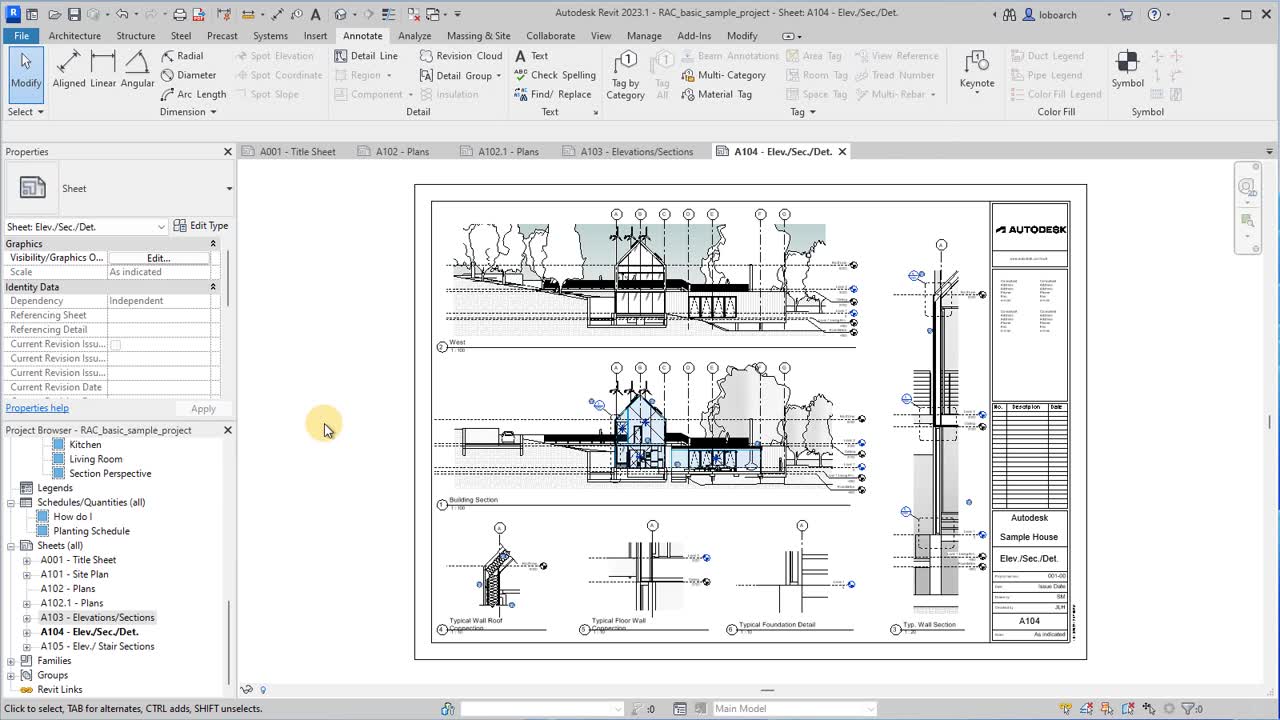
Image source - help.autodesk.com
Benefits of Advanced Sheet Creation Techniques
Surge in Productivity: Advanced techniques streamline the sheet creation process, minimizing the time expended on manual tasks and augmenting overall productivity. Automation and standardization play a prominent role in achieving these efficiencies.
Enhanced Accuracy: By leveraging advanced tools and features, professionals can ensure greater precision in their documentation. This minimizes the likelihood of errors and inconsistencies, leading to superior project outcomes.
Elevated Project Documentation: Advanced techniques result in more comprehensive and detailed project documentation. This fosters improved communication and coordination among project stakeholders, facilitating smoother project execution.
Tips for Organizing Sheets Effectively in Revit
Logical Sheet Grouping: Organizing sheets into logical groups, categorized by project phase or discipline, aids in maintaining a clear and well-structured project environment. This simplifies locating and managing specific sheets as required.
Utilizing Naming Conventions: Consistent naming conventions guarantee that sheets are effortlessly identifiable. This practice facilitates swift navigation and minimizes the potential for confusion, particularly in large-scale projects.
Employing Revit's Organizational Tools: Revit's tools, such as the Sheet Index and Browser Organization, facilitate efficient sheet management. These tools assist in keeping the project environment orderly and ensure all necessary documentation is readily accessible.
Browse our courses and build practical skills for real-world projects
Customization of Sheet Layouts
Modifying Title Blocks
Customizing title blocks empowers the incorporation of specific project information and branding. This ensures that each sheet fulfills project requirements and maintains a professional appearance.
Adjusting Viewports
Adjusting viewports involves resizing and positioning them to optimally display the project details. This customization ensures that all pertinent information is clearly presented and effortlessly interpretable.
Incorporating Company Branding
Incorporating company branding into sheet layouts fosters the maintenance of a consistent and professional look across all project documentation. This can encompass logos, color schemes, and specific layout elements.
Optimizing Sheet Views for Enhanced Clarity
Adjusting Scale
Selecting the appropriate scale for each view guarantees that details are distinctly visible. This is essential for accurate interpretation and communication of project information.
Visibility Settings
Fine-tuning visibility settings allows for the inclusion or exclusion of specific elements within views. This aids in highlighting relevant details and minimizes visual clutter.
Annotation Placement
Strategically placing annotations ensures that they are clear and legible. This enhances the overall clarity of the sheet and guarantees that all necessary information is effectively communicated.
Using Templates for Consistent Sheet Creation
Templates provide a standardized framework for sheet creation, ensuring consistency across all project documentation. By employing templates, professionals can streamline the sheet creation process, maintain uniformity in presentation, and minimize the time expended on setting up each sheet individually. This consistency is crucial for maintaining a professional appearance and ensuring that all necessary information is included in every sheet.
Automation Tools for Sheet Management
Using Dynamo for Automation: Dynamo, a visual programming tool, can automate repetitive tasks within Revit. By crafting custom scripts, professionals can streamline processes such as sheet creation, view placement, and annotation, saving time and minimizing the potential for errors.
Automated Sheet Numbering: Automated sheet numbering tools aid in maintaining consistent and accurate numbering across all sheets. This feature ensures that sheets are effortlessly identifiable and organized, facilitating improved project management.
Batch Processing Tools: Batch processing tools allow for the simultaneous execution of tasks across multiple sheets. This can encompass updating title blocks, applying view templates, or exporting sheets, significantly enhancing efficiency.
What you can automate with Dynamo:
Create all project sheets from a data list (sheet number + sheet name in one run)
Place the correct view on each sheet automatically
Apply view templates to all placed views simultaneously
Rename sheets in bulk using parameters
Export all sheets to PDF with consistent naming
Getting started: Dynamo is built into Revit — Manage > Dynamo. The key nodes for sheet creation are: Document.Sheets, Sheet.ByNameNumberTitleBlockAndView, and View.SetParameterByName.
Our guide to Revit Families covers the naming, nesting, and parameter setup that makes every sheet cleaner.
Also Read: Revit Families Explained
Basic script logic:
Pull sheet data from Excel using the Data.ImportExcel node
Feed sheet names and numbers into Sheet.ByNameNumberTitleBlockAndView
Connect your title block family to the TitleBlock input
Run — sheets are created instantly
You don't need to be a programmer. These nodes are visual, drag-and-drop, and the logic reads like plain English once you've done it once.
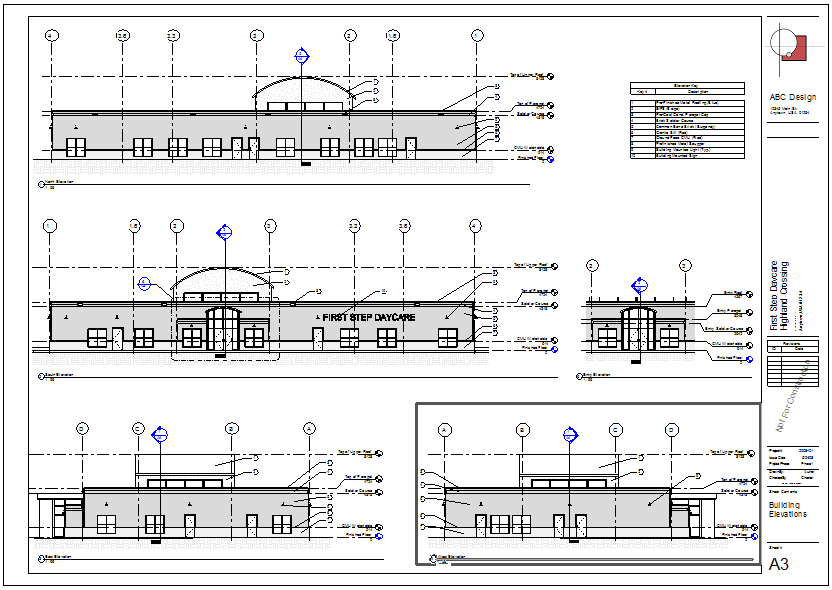
Image source - help.autodesk.com
Common Challenges in Sheet Creation and How to Overcome Them
Managing Large Projects
Large projects can present challenges in managing numerous sheets and views. Utilizing Revit's organizational tools and automation features can assist in streamlining this process and maintaining order.
Ensuring Accuracy
Maintaining accuracy across multiple sheets can be challenging. Employing advanced techniques and tools, such as view templates and automation, helps ensure that all documentation is consistent and accurate.
Handling Revisions
Managing revisions involves tracking changes and ensuring that all updates are documented. Revit's revision management tools aid in maintaining an accurate record of all modifications, guaranteeing that the project documentation remains current.
Tips for Enhancing Productivity in Sheet Management
Adopting best practices and leveraging the functionalities within Revit can significantly elevate sheet management proficiency. Here are some valuable tips to consider:
Embrace Industry Best Practices: Stay informed about industry-standard practices for sheet management. These practices often encompass utilizing templates, maintaining well-organized project files, and regularly reviewing workflows to identify areas for improvement.
Harness the Power of Automation: As discussed previously, automation tools like Dynamo scripts can significantly reduce time spent on repetitive tasks. Explore and integrate automation into your workflow to streamline sheet creation, view placement, and annotation processes.
Maintain a Structured Project Environment: A well-organized project environment within Revit translates to effortless access to all necessary documentation. Utilize Revit's organizational tools effectively, employ consistent naming conventions, and group sheets logically for optimal project management.
Also Read: Why BIM Automation is Essential for Future BIM Architects
Frequently Asked Questions: Revit Sheet Creation & Management
How do I create a sheet in Revit?
Right-click Sheets (all) in the Project Browser and select New Sheet. Choose a title block and click OK. You can also go to View tab > Sheet Composition > New Sheet. For large projects, use the Sheet List Schedule method to create multiple sheets at once — see the step-by-step section above.
What is a sheet index in Revit?
A sheet index is a schedule that lists all sheets in your project. Create one via View > Schedules > Sheet List. It typically includes sheet number, name, revision date, and status. Place it on the project cover sheet so clients and contractors can navigate the full drawing set easily.
How do I use Dynamo to create sheets automatically in Revit?
Open Dynamo from the Manage tab. Use the Sheet.ByNameNumberTitleBlockAndView node, fed with data from Excel via Data.ImportExcel. Connect sheet names, numbers, and your title block family. Run the graph and Revit generates all sheets in seconds. See the Dynamo section above for full steps.
What are Revit 2025 Sheet Collections?
Sheet Collections are a Revit 2025 feature that lets you group sheets into named sets (e.g. Permit Set, CD Set) within a single project. The same sheet can belong to multiple collections. This replaces manual custom parameters for filtering sheet sets and is especially useful for multi-phase projects.
How do I manage sheet revisions in Revit?
Go to View > Sheet Issues/Revisions to create a revision entry. Use the Revision Cloud tool on the sheet to mark what changed, then add a Revision Tag. The revision auto-populates in the title block if your title block family has a revision schedule embedded.
How do I set up view templates for Revit sheets?
Go to View > View Templates > Manage View Templates. Create a template and set visibility/graphics, scale, and detail level. Right-click any view in the Project Browser to apply it. Create separate templates for floor plans, elevations, and detail views to maintain consistency across the entire sheet set.
Conclusion
In conclusion, mastering sheet creation in Revit empowers BIM professionals to generate meticulous construction documents, fostering superior project outcomes. Professionals can improve project documentation, increase accuracy, improve cooperation, and expedite workflows by meticulously using the advanced practices covered in this guide. Remember, consistently implementing these practices, along with staying abreast of industry trends and embracing new technologies, will ensure you remain at the forefront of Revit sheet creation. This commitment to professional development paves the way for success in BIM projects and career advancement.
Become a Revit and BIM expert! Master the art of clear and concise documentation with our Revit & BIM Certification Course. Enroll today!
Visit the Kaarwan website for more insights!