If you're anything like me, you're always looking for ways to work smarter, not harder. Especially when it comes to using tools like Revit, finding those small but mighty ways to automate processes can make all the difference. Whether you’re just starting out or you’ve been working in the field for years, mastering Revit automation can significantly boost your productivity. In this post, I’ll walk you through some essential Revit automation tips, tricks, and hacks that have helped me streamline my workflow.

Image Credit: Usframing.com
Why Revit Automation Matters
Revit automation isn’t just about saving time (though that’s certainly a perk!). It’s about reducing repetitive work, minimizing errors, and allowing us to focus more on creativity and problem-solving—you know, the things we actually enjoy doing. Whether you’re an architecture student or a professional looking to cut down on the busywork, automation is the way to go.
Let’s jump into some of my favorite automation tips for Revit that can boost your productivity and get you that much closer to perfecting your designs.
1. Setting Up Revit Macros for Efficiency
What are Revit Macros?
Macros are an incredible way to create shortcuts for repetitive tasks. By automating these tedious actions, you can save countless hours. Essentially, a macro is a small script that can execute commands inside Revit. If you've ever felt like clicking the same button over and over is slowing you down, this is for you.
Quick Example: Setting up a macro to automatically align gridlines in your project can save a ton of time.
- Tip: Start with simple macros like placing tags or adjusting dimensions. As you get comfortable, you can move to more complex automation tasks.
How to Create a Macro
- Step 1: Go to the "Manage" tab.
- Step 2: Click on "Macros" and start the Revit Macro Manager.
- Step 3: Create your script using the built-in macro editor. C# and VB.Net are common languages for this.
Don't worry if coding seems intimidating—plenty of great tutorials are available to get you started.
2. Using Dynamo to Supercharge Automation
For me, discovering Dynamo was a game-changer. Dynamo is a visual programming tool that works with Revit to allow automation without the need for deep coding knowledge. It’s one of the most powerful tools you can leverage for Revit automation.
Why Use Dynamo?
- Automate repetitive tasks like renaming multiple views, creating sheet lists, or changing the properties of multiple elements.
- Customize tasks beyond Revit’s built-in capabilities.
Example Use Case: You can use Dynamo to automatically create levels and grids throughout your model. This is particularly helpful in larger projects.
If you're interested in a deep dive, check out this Dynamo course for beginners. It’s a fantastic way to learn how to use this powerful Revit automation tool.
3. Mastering View Templates
Another Revit hack that every student and professional should be familiar with is setting up View Templates. Templates are fantastic for automating view settings, which ensures consistency throughout your project—saving both time and headaches.
Benefits of Using View Templates
- Automate the visibility settings for different views.
- Apply uniform settings across multiple views with one click.
How to Set Up a View Template:
- Step 1: Create the view you want.
- Step 2: Set it up with desired properties like line styles, visibility settings, and view scales.
- Step 3: Save it as a template and apply it to other views.
This simple step saves you from manually adjusting each new view and ensures your project stays consistent.
4. Streamline Repetitive Tasks with Schedules
Using schedules effectively can massively reduce your workload. A lot of tasks related to managing data, like updating quantities, materials, or sizes, can be handled directly in schedules.
Schedule Automation Tips
- Use Conditional Formatting in schedules to highlight issues that need your attention.
- Leverage Shared Parameters to quickly populate schedules across multiple projects.
Schedules aren’t just about extracting data—they can also be a powerful automation tool when it comes to managing the data within Revit. When combined with Dynamo, the possibilities are nearly limitless.
5. Family Type Automation
Let’s not forget about Revit families. Automating family creation or modifying family types is another big time-saver. Using tools like Family Editor along with Dynamo can speed up the customization of families based on your project’s needs.
Example: You can automate the creation of multiple door types by setting variable parameters within the Family Editor. Imagine no longer needing to manually create each new variation—just set your parameters and let automation do the heavy lifting.
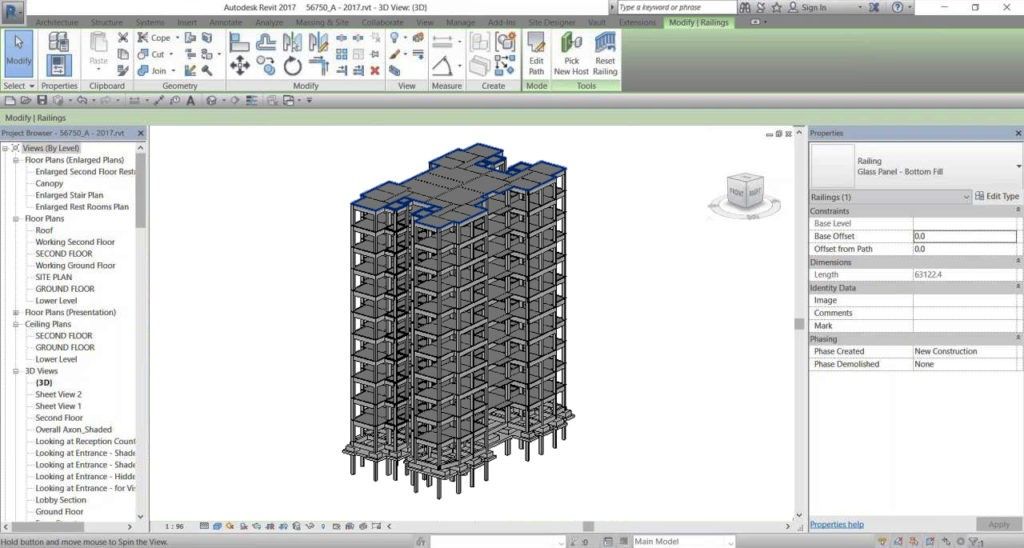
Image Credit: caddraftingservices.in
6. Tips for Automation with Revit Plugins
Revit software has numerous plugins that help enhance its automation capabilities. Here are some that I personally use:
Top Revit Plugins for Automation
- PyRevit: A must-have for anyone serious about Revit automation. It includes several ready-to-use scripts that help automate repetitive tasks.
- Enscape: While primarily a visualization tool, it has useful features to automate visual rendering, giving you those beautiful renders without too much manual work.
- RevitBatchProcessor: Helps you perform batch actions, like upgrading multiple models at once, which can save you hours.
By using plugins, you’re adding an extra layer of automation to your workflow. Plugins like PyRevit can even simplify script-writing for tasks like mass renaming or batch processing.
7. Embrace Revit Hacks for Improved Workflow
Finally, let’s get into some simple yet powerful Revit hacks that will make your work faster and more effective:
- Create Keyboard Shortcuts for frequently used tools. I know this sounds basic, but having shortcuts for your most-used actions is a huge productivity boost.
- Use Filter Rules to manage visibility of elements across multiple views. Filters can save time by allowing you to apply visibility settings without modifying individual elements.
- Batch Rename Elements using Dynamo or a plugin like PyRevit—trust me, renaming families, views, or sheets manually is not the best use of time.
Wrapping It Up
Revit automation, with tools like macros, Dynamo, and plugins, can truly transform the way you work. By automating repetitive tasks and focusing on effective hacks, you can not only save time but also improve the quality of your projects. Learning to harness the power of Revit automation may seem daunting initially, but the long-term productivity boost is more than worth it. It’s time to let Revit do more of the heavy lifting while you focus on design and creativity.
If you found these tips helpful, why not check out our Advanced Revit and BIM Course? It’ll take you from being a Revit user to a Revit power user.
Visit our website Kaarwan for more!
FAQs
1. What is Revit automation?
Revit automation involves using tools like macros, Dynamo, and plugins to reduce the manual effort involved in repetitive tasks, thereby increasing productivity.
2. How can I start learning Dynamo for Revit?
A good place to start is with beginner courses or tutorials on Dynamo. You can find several online, including those specifically designed for architecture students and professionals.
3. Are there any specific plugins for automating Revit tasks?
Yes, plugins like PyRevit, Enscape, and RevitBatchProcessor can significantly enhance Revit’s automation capabilities.
4. Can Revit automation help in project management?
Absolutely! Automating the management of views, schedules, and families can help keep your project more organized and reduce the workload for you and your team.
5. What are Revit macros, and how do I use them?
Macros are scripts used to automate tasks in Revit. You can create them through the Macro Manager in Revit, using programming languages like C# or VB.Net.