If you've ever felt overwhelmed by the sheer number of tasks involved in using Revit architecture software, then you're in the right place. Installing Revit plugins can truly transform the way you work, streamlining your workflow and allowing you to focus more on design creativity. Today, I’ll walk you through the process of installing Revit plugins step-by-step. It’s simpler than you think, and once you’re set up, you'll wonder how you ever managed without them. So, let’s get started!
->Join our live workshop to build a stronger Revit foundation
What is a Revit Plugin?
A Revit plugin is essentially an add-on that extends the capabilities of the core Revit software. These plugins come in handy when working on various aspects of Revit architecture, whether it’s optimizing model data, improving drawing quality, or enhancing productivity. Think of them as the special tools in a handyman’s toolbox—each plugin provides a unique advantage, making it easier for us to work smarter, not harder.
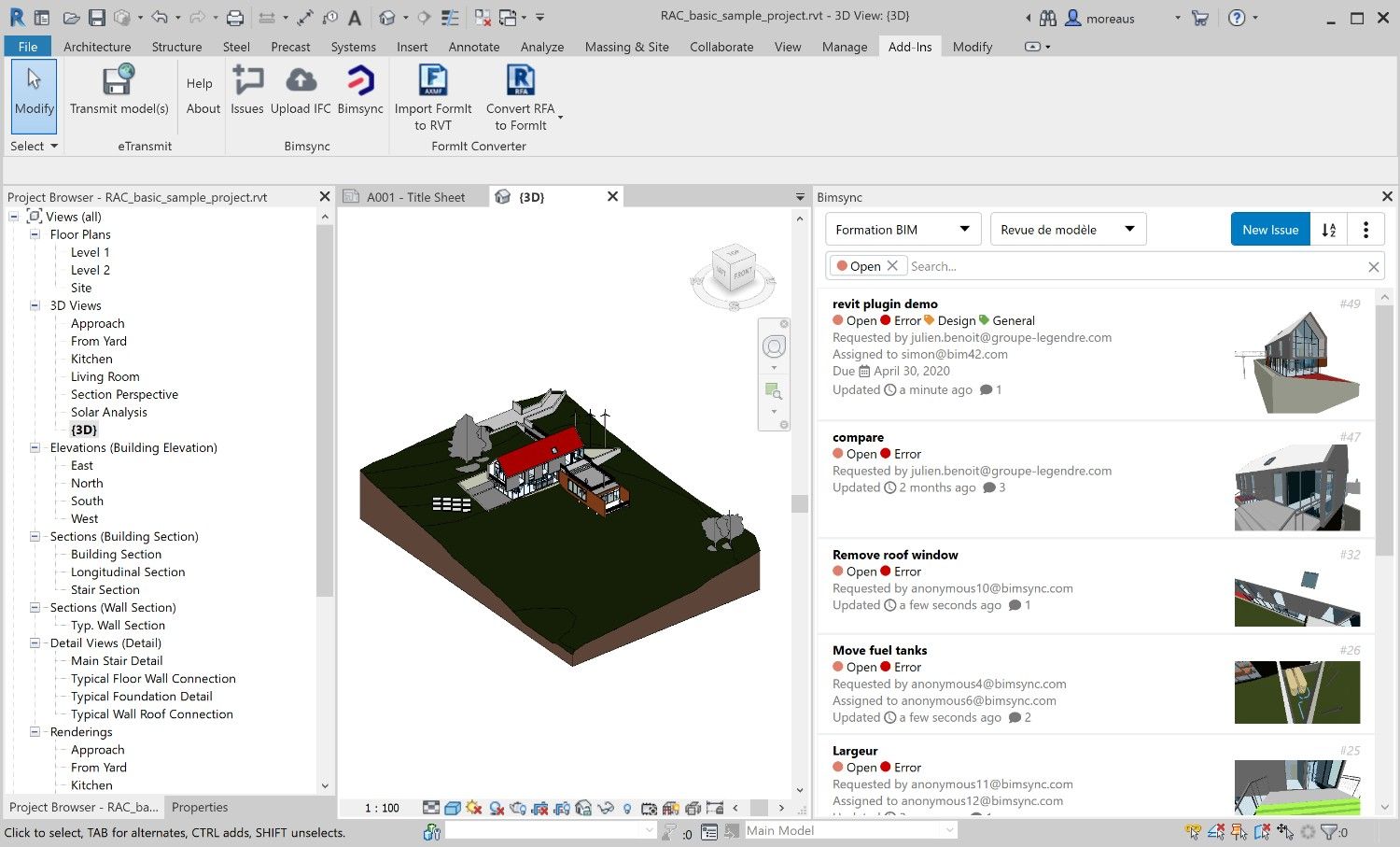
Image Credit: BIM42
Benefits of Using Revit Plugins
Before jumping into the installation process, let’s talk about why you might want to install Revit plugins in the first place:
- Save Time: Automate repetitive tasks, giving you more time to focus on design.
- Enhanced Productivity: Streamline workflows with tools specifically designed for certain tasks.
- Customization: Tailor the Revit environment to your unique needs and project requirements.
Popular Revit Plugins to Consider
Here are a few popular Revit plugins that are commonly used by architecture students and professionals:
- Dynamo: Great for visual programming, helping you automate tasks.
- Enscape: A popular rendering plugin to make your models look realistic.
- Revit Batch Print: For those who need to print multiple drawings in one go, this plugin is a lifesaver.
How to Install Revit Plugins: A Step-by-Step Guide
Step 1: Find the Plugin You Need
The first step is always to determine which plugin will best meet your needs. You can explore plugins on platforms like Autodesk App Store, or you can download plugins directly from their developers’ websites.
Tip: Check out our blog post on the Best Plugins for Revit Architecture for inspiration.
Step 2: Download the Plugin
Once you’ve identified the plugin you want, proceed to download it. Most plugins come as executable (.exe) files, which makes the installation process straightforward.
- Go to the developer’s website or the Autodesk App Store.
- Click on the "Download" button for your specific Revit version (e.g., 2022, 2023).
- Make sure to save the file in an easily accessible location.
Step 3: Install the Plugin
Now that you have the plugin downloaded, it’s time to install it.
- Locate the File: Open the folder where your downloaded file is saved.
- Run the Installer: Double-click the installer file. Typically, it will be named something like "PluginName_Setup.exe."
- Follow the Prompts: You will see a series of prompts; follow them to complete the installation. The installer will usually ask for the Revit version you wish to integrate the plugin with—select the correct one.
Step 4: Launch Revit and Activate the Plugin
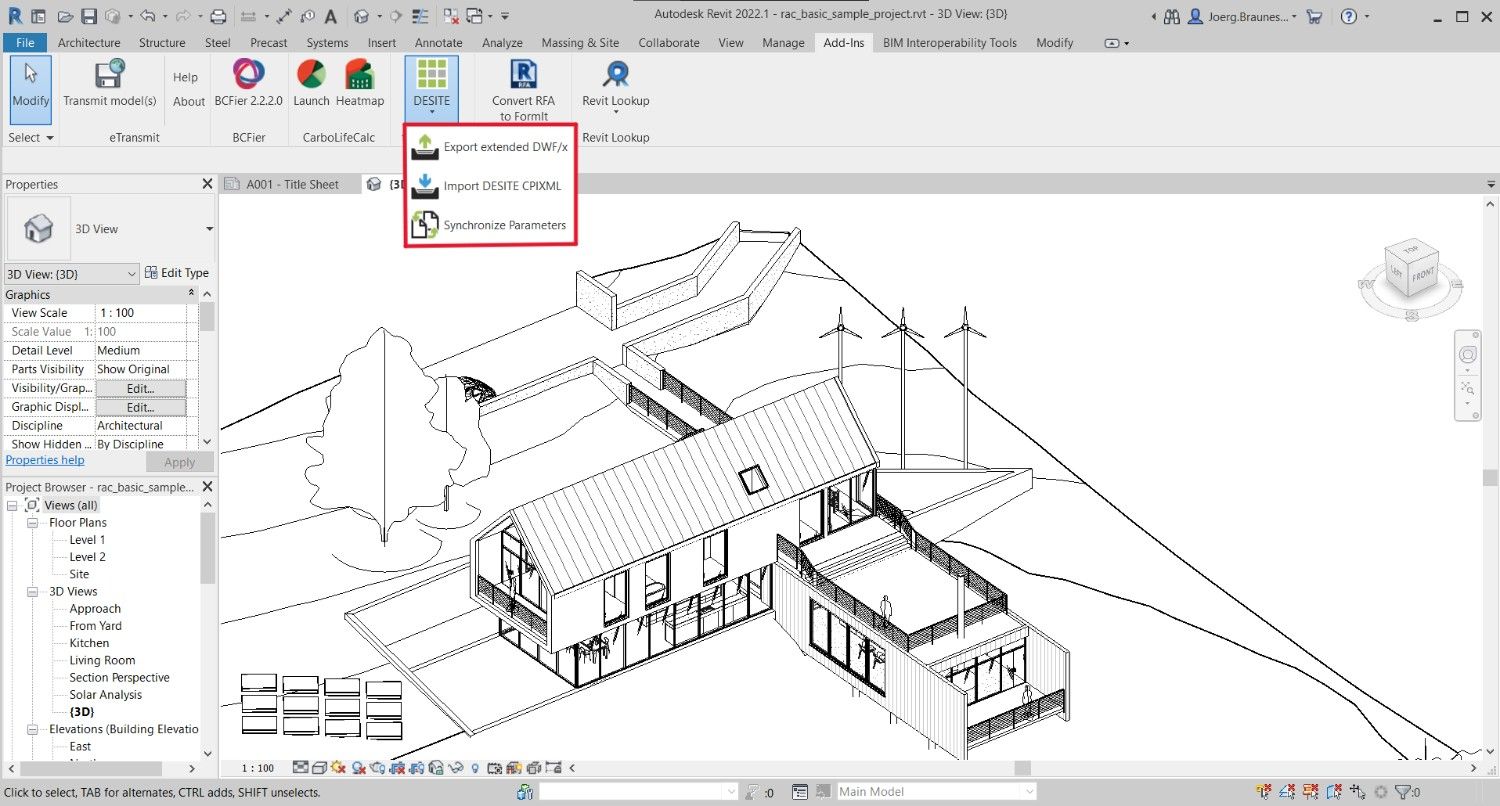
Once installed, open Revit. You should see a new tab or toolbar for your plugin, depending on which plugin you installed.
- Go to Add-ins Tab: Most plugins will appear under the "Add-ins" tab.
- Activate the Plugin: Click on the plugin icon, and follow any additional setup instructions if prompted.
Step 5: Customize Plugin Settings (Optional)
Many plugins allow for customization, so take a few minutes to adjust settings if necessary.
- Check the plugin’s manual to understand its features..
- You can find settings under the plugin’s tab in Revit for further customization..
- You can also read our guide on Revit for BIM structural and architectural elements to understand how different building components are modeled in BIM.
Common Issues When Installing Revit Plugins
Even though installing Revit plugins is relatively easy, there can be a few hiccups along the way. Here are some common issues and how to solve them:
- Incompatibility: Ensure the plugin version matches your Revit version.
- Permissions: You may need admin rights to install certain plugins.
- Blocked Files: Windows may block certain downloaded files. Right-click the installer, select "Properties," and click "Unblock" if you face this issue.
- Open Revit: Always close Revit completely before installing any plugin. Installing while Revit is open is the most common reason plugins do not appear after installation.
Recommended Revit Plugins for Architecture Students
I know that many of you are architecture students, and you're probably looking for plugins that will make your life easier. Here are a few that I highly recommend:
1. Dynamo for Revit
- Why I Love It: It enables automation for repetitive tasks, like creating complex geometric structures.
- Use Case: Think parametric modeling, which can really make your design projects shine.
2. Enscape
- Why It’s Awesome: Enscape is perfect for those last-minute renders to showcase your project.
- Use Case: Real-time rendering and immersive walkthroughs.
3. Model Checker
- Why It Matters: It helps you maintain the quality of your Revit models.
- Use Case: Reviewing compliance and checking model standards.
Master Revit with our Advanced Revit Courses that cover in-depth knowledge and tips on optimizing your workflow.
How to Keep Your Revit Plugins Updated
Plugins require regular updates to keep working smoothly with new versions of Revit. Here’s what you should do:
- Check for Updates: Visit the developer's website or use the Autodesk App Store to see if there are newer versions of your plugin.
- Reinstall If Necessary: If the plugin becomes incompatible after an update, reinstall the latest version.
To understand the skills you’ll gain after learning Revit, explore the BIM course outcomes and learning objectives.
Conclusion
Installing Revit plugins can make a huge difference in your Revit workflow. From automating repetitive tasks to creating stunning renders, the right plugins save you hours every week and make your work look more professional.
Start with the free ones, get comfortable, then explore more as your projects grow.
Ready to take your Revit skills further? Explore our Advanced Revit & BIM Course that covers complete BIM workflows — from Revit basics to advanced coordination designed for architects who want to work at a professional level.
Visit Kaarwan for more details!
FAQs
1. Why are Revit plugins important for architecture professionals?
Revit plugins significantly enhance productivity by automating repetitive tasks and adding capabilities not available in the standard Revit software, allowing professionals to focus on creative aspects.
2. Where can I find reliable Revit plugins?
The Autodesk App Store is the best place to start. It offers a range of verified plugins that work seamlessly with Revit.
3. Are Revit plugins free?
Some plugins are free, while others come at a cost. It’s always good to start with the free versions and upgrade if needed.
4. Can I use the same plugin across different versions of Revit?
Usually, plugins are version-specific. Ensure that you are downloading the correct version of the plugin compatible with your Revit software.
5. Why is my Revit plugin not showing after installation?
Three most common reasons — Revit was open during installation, wrong plugin version installed, or installer was not run as administrator. Reinstall after closing Revit completely and run installer as administrator.
6. Do I need to uninstall old plugin version before installing new one?
Most plugins automatically replace the old version during installation. However if you face issues after updating, manually uninstall the old version first from Windows Control Panel then install the new version fresh.