

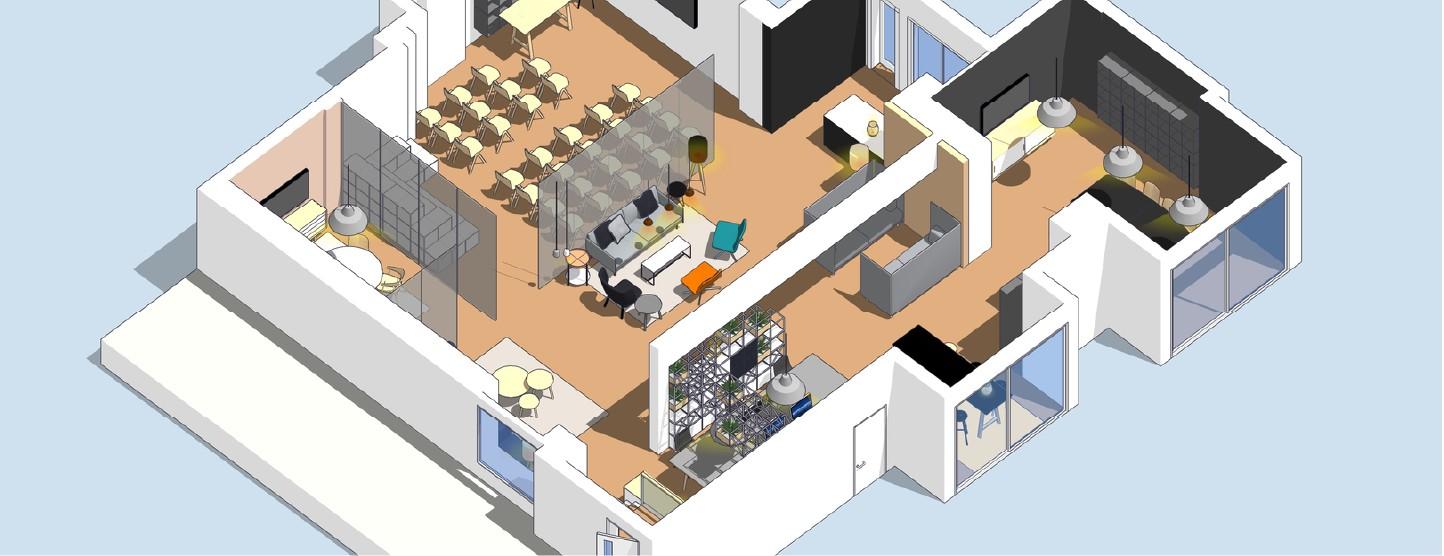
For architects and designers under tight deadlines, efficiency isn't just a bonus—it's a necessity. SketchUp, though famously intuitive, can become slow and cumbersome when models grow or workflows aren’t streamlined. Fortunately, with a few smart practices, the entire design and modelling process can be made faster, lighter, and more enjoyable.
Here’s how professionals can significantly speed up their SketchUp workflow without compromising on quality or creativity.
How to Speed Up Workflow in SketchUp: A Practical Guide for Architects and Designers
1. Master Keyboard Shortcuts Early
One of the quickest ways to become more efficient in SketchUp is by ditching the toolbar and mastering keyboard shortcuts. Navigating between tools without lifting the mouse reduces repetitive strain and saves seconds that quickly add up.
Customising shortcut keys based on personal preference can also make a significant difference. For example, mapping commonly used plugins to a single keystroke can streamline processes that otherwise take multiple steps.
2. Work Smart with Groups and Components
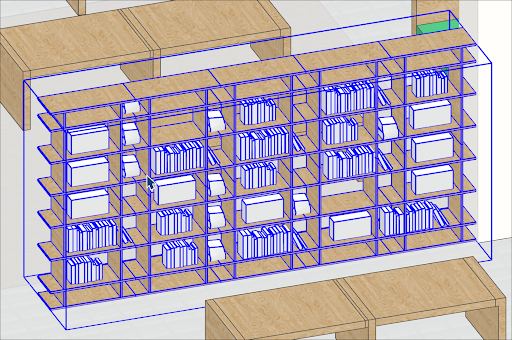
A sluggish model is often the result of messy modelling habits. Creating raw geometry on the same layer without grouping can cause faces and edges to stick together, making edits frustrating and time-consuming.
By using groups and components effectively, professionals can:
- Prevent geometry from merging unintentionally
- Quickly edit repetitive elements
- Reduce model size by reusing components (especially furniture, windows, and fixtures)
Components are particularly powerful as any change made to one instance updates all others. For architectural workflows, this is essential when working on multi-storey layouts or modular designs.
3. Use Templates and Scene Presets
Starting from scratch for every project wastes time. Instead, saving custom templates with pre-set units, styles, layers (tags), and scenes can help users jump straight into modelling without repetitive setup tasks.
For client presentations, scene presets can also be created to quickly switch between views like plans, elevations, and walkthroughs, all while maintaining consistent style settings.
4. Integrate Plugins Strategically
Plugins (or extensions) are where SketchUp truly becomes powerful. However, too many unnecessary plugins can clutter the interface and slow performance. Instead, carefully choose a few that solve specific pain points.
Some must-have extensions to boost productivity include:
- Selection Toys – for smarter selection control
- Fredo Tools – for advanced geometry handling
- Curic Mirror – for symmetrical modelling
- CleanUp³ – for cleaning up unused elements and reducing file size
- Solid Inspector – for ensuring models are 3D print or render-ready
Installing from the Extension Warehouse or SketchUcation Plugin Store ensures compatibility and regular updates.

5. Optimise Textures and Materials
High-resolution textures may look great but can heavily bloat a model. Resizing or compressing textures before importing them into SketchUp helps maintain smooth navigation, especially in larger files.
It’s also good practice to purge unused materials regularly through the 'Model Info' panel. This prevents file size from growing unnecessarily and makes material management easier.
6. Use Tags (Layers) and Scenes to Stay Organised
SketchUp allows users to assign objects to tags (formerly called layers), which helps manage visibility and reduces clutter when working on complex models. For example, separating furniture, lighting, structure, and landscape allows toggling them on/off as needed.
Pairing tags with scenes lets users navigate between clean views without the need to hide or unhide elements manually every time.
Explore your dream niches, take our personality skill test, and uncover what truly fuels your passion.
7. Avoid Over-Modelling
Not every object in the model needs to be detailed. A common mistake is over-modelling elements that won’t even be visible in the final output.
Instead:
- Use proxy components during modelling
- Save high-detail modelling only for key views or renders
- Use placeholder trees, people, or vehicles when working, and swap them before rendering
This keeps SketchUp running smoothly while still delivering high-quality visuals when needed.
8. Keep Models Clean and Light
SketchUp’s performance can dip with time if files aren’t maintained properly. Regularly using the ‘Purge Unused’ function, deleting hidden geometry, and auditing large component files helps improve speed.
Also, exporting heavy geometry like terrain or imported CAD files to a separate file and referencing them via components can make complex projects easier to manage.
9. Learn from Real Projects and Templates
Sometimes, the best way to speed up isn’t a tool, but a mindset. Observing how professionals structure their models — using consistent naming, pre-built detail libraries, standardised styles — can offer invaluable insights.
Courses that incorporate real architectural workflows, such as Kaarwan’s Advanced SketchUp + Lumion programme, teach these exact strategies through hands-on exercises. From plugin workflows to rendering efficiency, such training helps learners speed up without cutting corners. All alongside, a live community from the comfort of your home, on alternate days after work hours/late evening.
10. Sync with Rendering Software Smartly
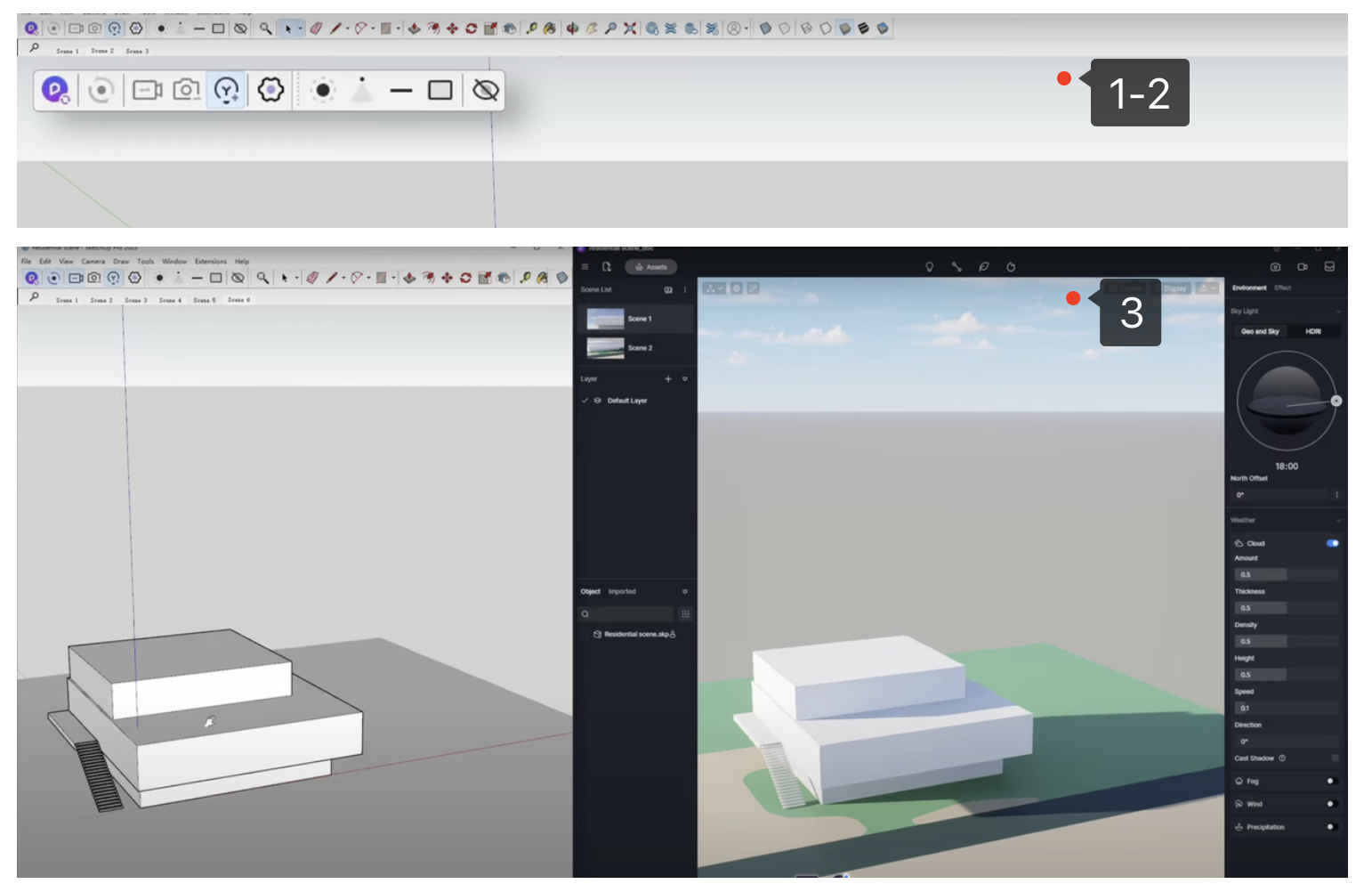
Exporting SketchUp models to rendering tools like Lumion can become a bottleneck — unless done right. Using tools like Lumion LiveSync enables real-time sync between the two software, meaning one can tweak the model and instantly preview it in Lumion without manual re-imports.
This not only saves time but also encourages design experimentation with materials, lighting, and environment — all while keeping the SketchUp file clean and efficient.
Conclusion
Speeding up workflow in SketchUp isn’t about rushing — it’s about working smart, staying organised, and using the right tools at the right time. With good modelling practices, efficient plugin use, and a clear file management strategy, architects can turn SketchUp from a slow, cluttered workspace into a fast, powerful design machine.
Whether you're a student creating your first portfolio or a professional looking to upgrade your deliverables, sharpening your SketchUp workflow could be the edge you need.




.png)