
It is 11pm. Submission tomorrow. You make one small edit — move a wall maybe 300mm — and Revit freezes for forty seconds. Then someone on the team syncs to central and everything slows to a crawl. The cursor is spinning. Nobody knows why. Everyone blames the computer.
Here is the thing though: it is almost never the computer.
Revit performance issues are, in the vast majority of cases, a BIM standards problem — not a hardware problem. The file has accumulated bloat, imported geometry it should not have, views that render more than they need to, and warnings that nobody resolved because there was always something more urgent to fix. Over weeks and months, all of that compounds. And then one evening close to a deadline, Revit finally tells you about it.
Here are five BIM standards for Revit that address the real causes of lag — and apply to whether you are a student working on your first big project or a BIM coordinator managing a federated model across three consultants.
The Real Reason Revit Files Get Slow
Before the fixes, it helps to understand what is actually happening under the surface.
Every time you regenerate a view, open the file, sync to central, or change an element, Revit has to process everything loaded in memory. Unused families, imported CAD files with thousands of lines and layers, views that display every single building category even when you only need walls all of this gets processed whether you are using it or not. Revit is not smart enough to ignore content just because you are not looking at it right now. If it is in the file, it costs processing power.
The usual culprits and these are what happen when teams work without enforced BIM standards in place:
File bloat from unused families, materials, line styles, and views. Every family that got loaded, used once, and never deleted. Every detail view was created as a test and never removed. Every material imported for a facade option that was rejected in week two. All is still sitting in the file.
High-detail families loaded at full resolution. MEP equipment families, furniture, fixtures — if these were downloaded from a manufacturer's website, they are almost always modelled at far too much detail for a working BIM model. They tank viewport performance, especially in 3D views.
No view template discipline. Without view templates, every single view in your project independently renders every single category — structural framing, furniture, plumbing fixtures, electrical conduits, all of it — even when you are looking at an architectural floor plan that needs none of it. Multiply that across a hundred views, and you have a significant performance problem.
Worksharing misuse. Local files that have not synced in days. Too many worksets are open for users who only need to work in one area. Borrowed elements not relinquished. All of this creates sync lag and file instability.
DWG imports instead of links. This one deserves its own section — and it gets one below — because it is probably the single most common cause of Revit file size too large problems in Indian architecture practice, where consultant drawings frequently come in as AutoCAD DWG files.
None of these are user errors, exactly. They are what happens without enforced standards. Here is how standards solve each one.
Master Revit and BIM from the ground up with industry-standard workflows, family creation, model management, and project coordination techniques used by leading AEC firms. → Explore Kaarwan's Professional Revit & BIM Certification Program.
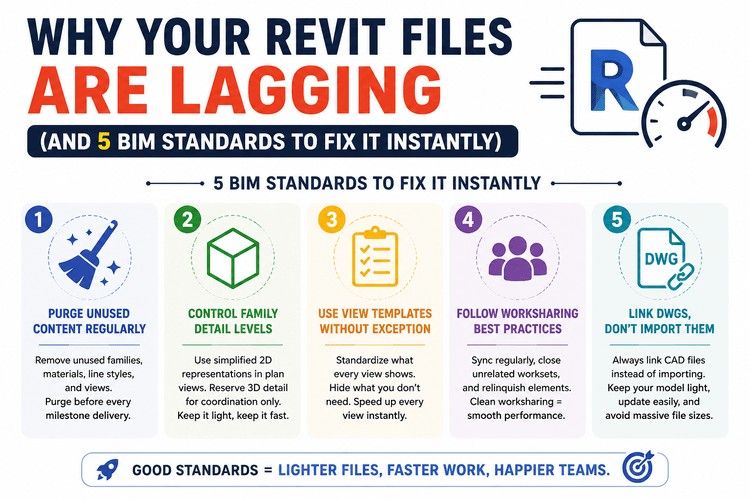
BIM Standard 1: Purge Unused Content Regularly
The most direct fix for a bloated Revit file slow situation, and the one that takes the least time to apply.
Go to Manage and then go to Purge Unused. This removes families, line styles, fill patterns, materials, and other content that exists in the file but is not referenced by any model element. The first time you run this on a project that has never been purged, the file size reduction can be dramatic. Hundreds of megabytes in severe cases.
The standard to enforce: purge before every milestone delivery. Before the SD issue. Before the DD issue. Before the CD issue. Before coordination. Before handover. Make it part of the checklist the same way you check that sheets are complete.
The pro tip that most people do not know: run purge more than once in a single session. Revit does not purge recursively on the first pass. The first purge removes the top layer of unused content. The second pass often finds more items that were previously dependent on now-deleted content. Run it three times until it comes back with zero items to purge.
This alone can take a Revit file size too large problem and cut it significantly within twenty minutes.
BIM Standard 2: Control Family Detail Levels
This one requires a bit more discipline to enforce but has massive impact on viewport performance, especially in 3D views and coordination models.
Every family in Revit has a Level of Detail setting, Coarse, Medium, and Fine, and can display different geometry at each level. High-polygon families, MEP equipment, furniture suites, sanitary fixtures, structural connections, loaded at Fine detail in plan views, is a common source of Revit performance issues that teams do not trace back to families because the problem is invisible. You cannot see polygon counts. You just feel the slowness.
The standard to enforce: families in plan views should display 2D symbolic representations, not full 3D geometry. Reserve 3D detail for coordination views only, and only when actively running clash detection. For general working views and sheet output, 2D symbols are all you need and are a fraction of the processing cost.
Audit your loaded families. Any furniture, fixture, or MEP equipment family with more than 500 faces visible in plan view is a candidate for replacement with a lighter version. Most good BIM libraries — and the Autodesk-provided content — already have simplified plan representations built in. Use them.
Also Read: How to Recover Corrupted Revit Files: A Step-by-Step Guide
BIM Standard 3: Use View Templates Without Exception
If you have ever opened a Revit file and watched the cursor spin for ten seconds every time you click into a different view, this is almost certainly the cause.
Without view templates, every view in your project independently controls its own Visibility/Graphics settings. That means every view is independently deciding what to render. In a project with 150+ views, that is 150 independent rendering decisions happening constantly. When a view template is applied, Revit handles this systematically and efficiently.
The standard to enforce: no unassigned views in production models. Every view created gets a template applied at creation. No exceptions.
The practical approach: create a small set of standardised templates that cover your actual view types — architectural floor plan, section, elevation, reflected ceiling plan, coordination 3D, working 3D. Keep them lean. Turn off every category that does not belong in that view type. A structural engineer working in an architectural model does not need planting or furniture visible. An interior designer in a floor plan does not need structural framing rendered.
The pro tip: create a "Working" template set to Coarse detail level and with most non-essential categories turned off. Apply this to any view you are actively modelling in. Reserve Medium and Fine detail settings for views that are going onto sheets. Your navigation speed in working views will improve noticeably within the same session.
BIM Standard 4: Link, Don't Import
This is the how to speed up Revit fix that Indian architecture teams need most urgently, and it is completely free to implement.
DWG files — survey drawings, consultant coordination drawings, site plans, authority drawings, get imported into Revit files every day on projects across the country. When you use Insert → Import CAD instead of Insert → Link CAD, that DWG file's data is permanently embedded in the Revit file. Every layer, every block, every line style, every text style — baked in, with no clean removal path.
The result: the file gets heavier, Revit file slow behaviour gets worse, and if you try to purge the imported content later, it often cannot be fully removed. The data is too embedded.
The standard to enforce: no DWG imports permitted. Survey drawings, site plans, consultant coordination drawings, and authority drawings all links only. Go to Insert → Link CAD, not Import CAD. The linked file's data stays external, and Revit references it without permanently embedding it.
You can audit your current file by going to Manage → Manage Links. Anything listed there as an import rather than a link needs to be addressed. Delete the import, clean up the residual line styles and layers that came with it, then relink properly.
One more thing: clean the DWG before linking it. Open it in AutoCAD, delete layers you do not need, purge unused content from the AutoCAD file, and then bring it into Revit as a clean, minimal file. A consultant who sends you a 50MB DWG with a hundred unnecessary layers and reference geometry is adding that weight to your Revit file every time they update.
BIM Standard 5: Workset Discipline and Local File Hygiene
Worksharing in Revit is powerful and genuinely enables collaborative multi-user workflows on large projects. It is also one of the most commonly misused features in Revit practice — and misuse creates exactly the sync lag, file instability, and performance degradation that teams blame on hardware.
The problems that come from poor workset discipline: local files that have not been synced to central in days (accumulating huge change logs that take forever to push), borrowed elements that nobody relinquished (creating bottlenecks for other team members), all project content sitting in a single default workset (no ability to unload heavy content when working in a different area), and local files that have become corrupted because they were copied rather than properly created.
The standard to enforce: sync to central at every session start and every session end, minimum. On active project days — every 30 to 45 minutes. Relinquish all before closing. Do not sync and leave borrowed elements open overnight.
Delete and recreate local files weekly. A local file that has been accumulating changes for three weeks without recreation develops its own performance issues independent of the central file. Starting fresh each week takes two minutes and prevents a category of problems that are genuinely hard to diagnose later.
When creating a new local file, open it with the Audit checkbox enabled. This scans for and fixes file corruption at opening — it takes longer but catches problems before they become critical.
Do Explore: Revit Interview Questions and Answers for BIM Professionals
When It Actually Is Your Hardware
Let's be honest about this too, because sometimes after you apply all five standards, there is still a hardware issue underneath.
If you have purged, fixed your imports, applied view templates, and managed your worksets, and Revit is still lagging, check these:
RAM: 32GB is the practical minimum for projects with federated models (architectural, structural, and MEP linked together). 16GB is workable for a single, discipline model under 200MB. Files above 500MB need 64GB to run comfortably. Revit uses approximately 20 times the file size in RAM during operation.
Storage: Revit local files need to live on a fast local drive — ideally an NVMe SSD. Running a Revit local file off a network drive or cloud-synced folder (OneDrive, Google Drive) creates I/O bottlenecks on every save and sync. This is one of the most common performance killers in Indian studio setups where shared drives are standard.
CPU: Revit's core modelling operations, regeneration, syncing, opening files — are largely single-threaded. A faster clock speed on fewer cores outperforms a slow multi-core processor for Revit work. High single-thread performance is what matters.
But — fix the standards first. Hardware upgrades cost money. The five standards above cost nothing except discipline.
Master Revit and BIM from the ground up with industry-standard workflows, family creation, model management, and project coordination techniques used by leading AEC firms. → Explore Kaarwan's Professional Revit & BIM Certification Program.
Frequently Asked Questions
Q1: Why is my Revit file so slow even on a good computer?
In most cases, hardware is not the issue. Slow Revit files are caused by bloated content — unused families, materials, line styles — imported DWG files instead of linked ones, or views rendering every category without view template discipline applied. Apply the five BIM standards — purge, link instead of import, and use view templates — before assuming you need a hardware upgrade. The audit and purge alone can fix 60-70% of Revit file slow situations immediately.
Q2: How do I reduce Revit file size?
Use Manage → Purge Unused to remove content not referenced in the model — run it multiple times in sequence until it returns zero results. Audit loaded families for unnecessarily high-detail geometry and replace with simplified versions. Delete all DWG imports and relink them properly. Each of these steps contributes to reducing Revit file size too large problems without touching any model geometry.
Q3: What is the ideal Revit file size for a project?
There is no single universal rule, but files above 150–200MB for a single-discipline architectural model often signal bloat rather than genuine project complexity. Federated models — where architectural, structural, and MEP are kept as separate linked files — distribute load much better than a single all-in-one project file and are considered Revit best practices for any project above a certain size. Files above 500MB without a clear reason almost always contain fixable bloat.
Q4: What are BIM standards and why do teams need them?
BIM standards are agreed protocols for how a Revit model is structured, named, and maintained throughout a project. They cover family naming conventions, workset structure, view template requirements, purge schedules, and import versus link policies. Without enforced BIM standards for Revit, individual team members make different decisions and the file accumulates inconsistencies that directly cause performance problems. Common international frameworks include ISO 19650, and India's BIM mandates for large public infrastructure projects are increasingly requiring documented standards compliance.
Q5: Does Revit use GPU or CPU for rendering?
Revit's core viewport display and modeling operations are largely CPU-dependent — particularly single-thread CPU performance. GPU helps with visual style rendering (Realistic mode) and ray tracing, but general modeling navigation depends more on CPU speed and available RAM. The most impactful hardware investments for Revit performance issues are faster single-thread CPU speed, increased RAM (32GB minimum for federated projects), and fast local NVMe SSD storage for project files. Running Revit off a network drive or cloud-synced folder is one of the most common preventable causes of performance lag.