Somewhere around third year, every architecture student hits the same wall. Your model is done. It's decent, maybe even good. And then you open your renders and... they look like a screenshot from 2011. Flat light, plastic-looking materials, a sky that's just a gradient someone forgot to finish.
This is usually the exact moment someone in your studio leans over and says "bro, just use D5." And honestly? They're not wrong.
D5 Render has quietly become one of the most talked-about tools in student circles over the last couple of years - not because it's flashy, but because it's fast, it's free (mostly), and it doesn't demand you learn an entirely new visual language just to make something look decent. If you've been putting off learning it because it seems like one more piece of software to cram into an already packed semester, this guide is meant to get you from zero to your first actual render without the usual trial-and-error mess.
What Is D5 Render?
D5 Render is a real-time rendering engine built specifically for architecture, interior design, and landscape visualization. The "real-time" part is the whole point - instead of hitting render and going to make chai while your computer chugs through an image for twenty minutes, you see the changes as you make them. Move a light, and the shadows shift instantly. Swap a material, and it updates on the spot.
It runs on real-time ray tracing, which is a fancy way of saying it simulates how light actually bounces around a space, rather than faking it with pre-baked shortcuts. That's why D5 renders tend to look convincing even when you haven't fussed over every setting - the lighting engine is doing a lot of the heavy lifting for you.
It plugs into the software you're probably already using - SketchUp, Revit, Rhino, Archicad - so you're not remodeling anything. You bring your model in, and D5 handles the atmosphere, materials, and light.
System Requirements: Can Your Laptop Run D5 Render?
Let's deal with the uncomfortable question first, because there's no point learning a tool your machine can't handle.
D5 Render is GPU-hungry. Real-time ray tracing pushes your graphics card, not your processor, which is a bit of a shift if you've been running SketchUp or AutoCAD on a laptop that gets by on a decent CPU alone.
Bare minimum to get it running:
- Windows 10 or 11 (64-bit) - no Mac support yet, worth knowing before you get attached to the idea
- An NVIDIA RTX graphics card (GTX cards technically work but will frustrate you)
- 16GB RAM
- SSD storage, because your assets and cache will thank you
What actually makes it pleasant to use:
- RTX 3060 or higher
- 32GB RAM
- NVMe SSD
If you're staring at your laptop specs right now feeling a little uneasy, you're not alone - a lot of students discover mid-semester that their machine wasn't really built for this kind of work. Worth reading up on how to get more out of a rendering-limited laptop before you assume you need a whole new setup. Sometimes it's a settings problem, not a hardware problem.
Build industry-ready visualization skills with Kaarwan’s Visualisation & Rendering Course, covering SketchUp, Photoshop, Lumion, V-Ray, animation, and portfolio development through hands-on projects.
How to Install D5 Render and Connect It to SketchUp or Revit
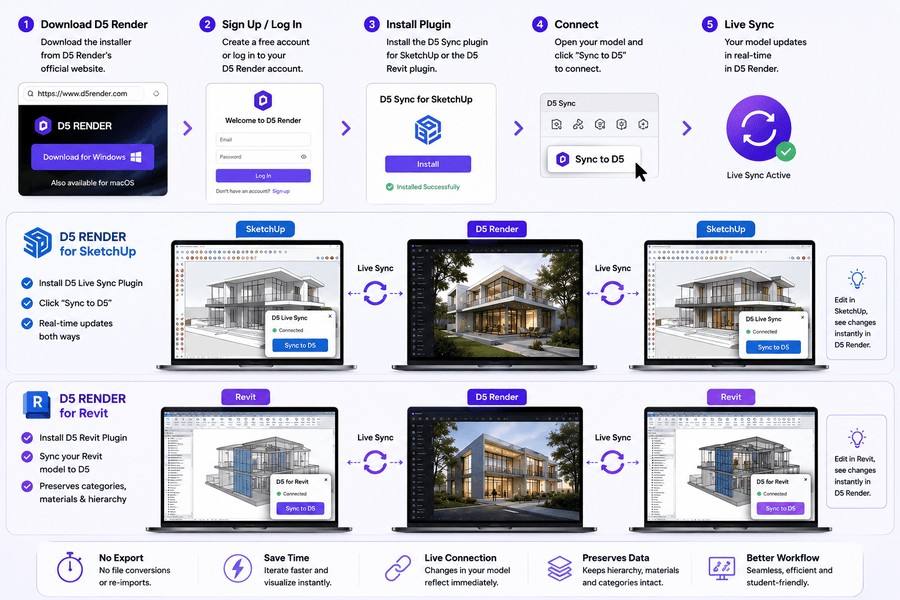
Installation itself is painless - head to D5's official site, download the installer, and sign up for a free account. It's the syncing to your modeling software that trips people up the first time, mostly because they expect it to be more complicated than it actually is.
D5 Render for SketchUp (Live Sync)
D5's SketchUp integration works through something called Live Sync, and it's genuinely one of the nicer parts of the workflow. You install a small plugin inside SketchUp, open your model, and click "Sync to D5." Your geometry shows up instantly on the D5 side - no exporting, no file format conversions, no praying that nothing broke in translation.
The real magic is that it stays live. Go back into SketchUp, push-pull a wall, add a window - and it updates in D5 without you doing anything else. For students who iterate constantly right up until submission (which, let's be honest, is all of us), this back-and-forth is what makes D5 worth the install.
D5 Render for Revit
The Revit connection works similarly, through a dedicated plugin that links your Revit model to a live D5 scene. It's particularly handy if you're doing BIM-heavy studio work, since D5 respects your Revit categories and materials reasonably well on import, saving you from reassigning everything from scratch.
Your First Render: Materials, Lighting (Geo & HDRI), and Assets
Once your model's in, this is where the fun actually starts - and also where beginners tend to either fall in love with D5 or get mildly overwhelmed. Neither reaction is wrong.
Materials work through a PBR system (physically based rendering, if you want the full term), which just means materials respond to light the way real materials do. Concrete should be rougher, glass should reflect more, and D5's asset library has thousands of pre-made options so you're not building every material from nothing.
Lighting is where D5 gives you two systems, and picking the right one matters more than people expect:
- Geo & Sky lighting is based on real geographic location and time of day. Great for exteriors - you control sun angle, season, and time, and D5 calculates the light accurately for wherever you've set your project.
- HDRI lighting uses a 360-degree environment image instead, which tends to give better, more even reflections - especially useful for interiors with lots of glazing.
There's no wrong answer here, but a rough rule that helps: exteriors lean Geo & Sky, interiors with big windows often look better under HDRI. Experiment a bit before your final render - five minutes of testing saves you from a flat-looking submission.
Assets - trees, furniture, people, cars - drop in via drag and drop from the built-in library. Small tip nobody tells you upfront: don't place identical trees in a neat row. Rotate a few, scale a couple slightly differently. Repetition is the fastest way to make a scene look artificial, even when everything else is done well.
D5 Render vs Lumion vs Enscape: Which Should You Learn First?
This comes up constantly in studio group chats, so let's just address it directly.
D5 tends to edge ahead on reflections and global illumination accuracy - architects who've used both often say D5's glass and water look more convincing straight out of the box. Enscape, meanwhile, is loved for how tightly it integrates with Revit specifically, especially in professional BIM workflows. And if your friends are using a different real-time engine, it's worth knowing what else is out there before you commit to just one.
Truthfully, the differences matter less than people think at the student stage. What matters more is which one your studio, mentor, or firm actually uses - because rendering software, like most software, is really about the workflow you build muscle memory for. If you're curious why some firms still lean toward older engines, this breakdown of where each tool still holds its ground is a decent starting point.
Is D5 Render Free? Pricing Explained
Here's the good news - D5 Render has a genuinely usable free tier. You get access to real-time rendering, a chunk of the asset library, and enough functionality to complete real studio projects without paying anything.
The paid tier (D5 Pro) unlocks the full asset library, higher export resolutions, and some AI tools that speed up workflows further. For most students, the free version covers what you need for coursework. You'll only start feeling the pinch if you're doing portfolio-level work where every asset and texture option matters.
Build industry-ready visualization skills with Kaarwan’s Visualisation & Rendering Course, covering SketchUp, Photoshop, Lumion, V-Ray, animation, and portfolio development through hands-on projects.
D5 Render Career Scope: Do Firms Actually Use It?
Short answer - yes, increasingly so. Real-time rendering has shifted from "nice to have" to something firms actively expect, especially for client-facing work where fast turnaround matters more than squeezing out the last 2% of photorealism.
D5 shows up regularly in architectural visualization roles, interior rendering studios, and real estate marketing pipelines, where speed genuinely translates to more client meetings closed. If you're coming at this from the interior side rather than pure architecture, there's a broader visualization pathway worth exploring that covers rendering software choices beyond just D5.
The honest takeaway: learning D5 isn't going to replace understanding design fundamentals or knowing your way around SketchUp and Revit properly. But it does make you noticeably faster at the visualization stage, and speed is something firms notice quickly.
If you want to build real-time rendering into a proper professional skillset rather than picking it up piecemeal between deadlines, Kaarwan's Online Architecture Visualisation & Rendering Course walks through D5 alongside other rendering engines with actual project-based practice.
If your focus sits more on interiors, the Interior Design Advance Certification Course covers rendering as one piece of a much fuller design workflow, from concept through final presentation.
FAQs
Should beginners enroll in structured D5 Render training, or self-teach?
Self-teaching works fine for the basics - installation, syncing, a first render - since D5's interface is genuinely intuitive. Where structured training helps is lighting theory, material realism, and composition, which take longer to get right through trial and error alone.
Can D5 Render replace other rendering engines completely?
Not entirely. D5 is excellent for fast, real-time visualization, but some firms still lean on offline renderers like V-Ray when maximum photorealism or specific material accuracy is non-negotiable. Most professionals end up knowing more than one tool.
Is D5 Render free for students?
Yes - the free tier includes real-time rendering and enough of the asset library to complete coursework and portfolio pieces without a paid subscription.
What are the system requirements for D5 Render?
At minimum, Windows 10/11, an NVIDIA RTX graphics card, 16GB RAM, and SSD storage. For smoother performance, an RTX 3060 or higher with 32GB RAM is recommended, since D5 relies heavily on GPU power for real-time ray tracing.